


Configuration
All settings are located at Settings > Tools > SQL Visualizer. The search box at the top-left of the Settings dialog finds these entries directly — every plugin setting is registered with the IDE settings search index. The plugin landing page has its own search box on top of that; both index the same data and return the same hits.
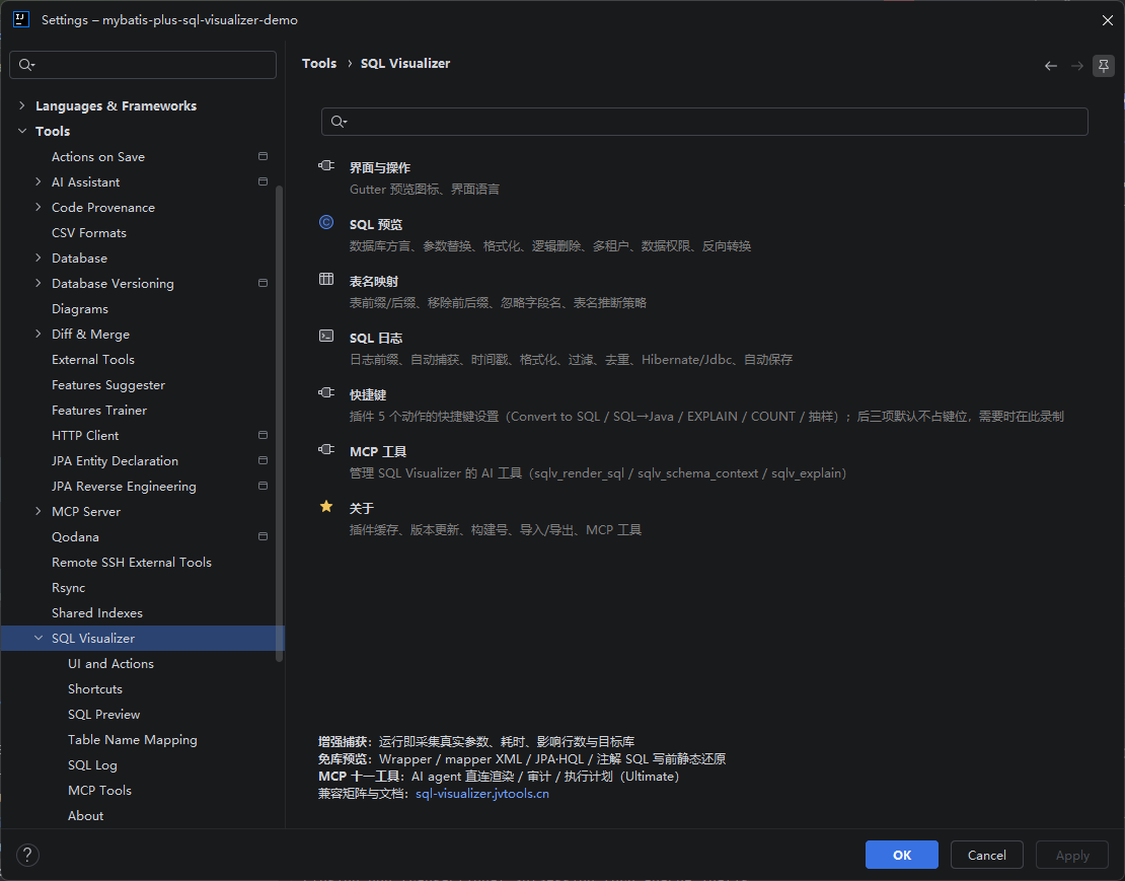
The bottom of the top-level "SQL Visualizer" settings page carries a capability matrix — four lines stating what the plugin does: runtime capture of real parameters and timings, static pre-execution reconstruction without a database, eleven MCP tools for AI agents, and where the compatibility matrix and docs live.
No IDE restart needed: re-trigger a preview and the new settings apply.
SQL Preview
| Setting | Default | Description |
|---|---|---|
| Database Dialect | Auto-infer | Pagination / upsert clauses render per dialect; defaults to "Auto-infer", can be pinned manually, and leaving it empty at project level follows the global setting. See Wrapper → SQL Preview · Dialect pagination |
Replace ? Placeholders | On | Off = variables also render as ? |
| Formatted Output | On | Multi-line indent (Off = single line) |
| Vertical Layout Column Tags | On | In vertical layout, each INSERT value line end shows a pairing -- column annotation (the vertical-layout button tooltip likewise notes that this can be turned off here) |
| Literal Parameter Recovery | On | When log SQL has no ? placeholders, string literals are identified as editable parameters; numeric constants are recognized only in comparison / IN / BETWEEN / VALUES contexts — LIMIT and projection-column constants are never mistaken for pagination parameters |
| Auto-Fold Long Field Lists in SQL Preview | Off | When enabled, preview editors collapse long field lists (SELECT / INSERT column lists, VALUES groups, UPDATE SET) into a "… N columns" placeholder — click the fold marker to expand; applies consistently across the main preview, single-click preview, history preview, Log → SQL results and the native console |
| Auto-Fold Field Threshold | 10 | A field list folds only when it has at least this many elements and spans multiple lines; editable only while auto-fold is enabled |
| Logic Delete Injection | On | @TableLogic auto appends AND deleted = value |
| Logic Delete Value | 0 | Value for the logic delete condition |
| Embedded column naming | Auto | Whether to prefix flattened @Embeddable fields with their component path (e.g. qty_base_qty rather than base_qty); "Auto" recognises the project's ImplicitNamingStrategy and falls back to no prefix when it cannot tell |
| Tenant Injection | Off | Entity queries / updates / deletes auto append AND tenant_id = ? (preview simulation, aligned with MP's tenant interceptor semantics) |
| Tenant Column Name | tenant_id | Column name used for tenant injection, adjustable per business (e.g. org_id / shop_id) |
| Tenant Column Default | 1 | Literal default appended to UPDATE SET / INSERT tenant columns |
| Append Tenant Column on INSERT | On | Sub-switch: the INSERT column list gets the tenant column appended (aligned with MP TenantLineInnerInterceptor INSERT semantics); INSERT only — requires Tenant Injection to be on, UPDATE / DELETE unaffected |
| Simulate Pagination Interceptor (COUNT preview) | On | For mapper methods / XML / annotation statements taking a Page / IPage argument, the preview appends the pagination clause and emits a COUNT wrapper alongside (SELECT COUNT(*) FROM (...) TOTAL), matching MyBatis-Plus PaginationInnerInterceptor runtime behaviour (skipped when searchCount=false). See Wrapper → SQL Preview · pagination simulation |
| Append paginated COUNT preview | On | Sub-switch of the simulation: when off, only LIMIT is appended and no COUNT statement is produced; has no effect while the master switch is off (parent wins) |
| Enable JdbcTemplate string-SQL preview | On | Shows a preview icon for string SQL arguments of queryForList / update and friends, triggerable with Alt+Shift+Q; named parameters (NamedParameterJdbcTemplate :name placeholders) are filled in |
| Show DataPermissionInterceptor runtime-difference hint | Off | When on, the warning area of SELECT / UPDATE / DELETE previews notes that the interceptor appends conditions dynamically at runtime |
| Data-permission mock condition | empty | A hand-written WHERE fragment (e.g. dept_id IN (1,2,3)) appended to the end of SELECT / UPDATE / DELETE, for previewing the statement as data permissions would shape it |
| Structured EXPLAIN rendering inside the preview panel | Off (experimental) | By default the plan goes to the native database console; when on, MySQL-family (tabular rows) and PostgreSQL-family (FORMAT JSON tree) plans render structurally inside the preview panel with index suggestions, while other dialects and any failure path fall back to the native console (both channels coexist) |
| Keep raw EXPLAIN plans across sessions | Off | Off means plans are only comparable within the current session. When on, snapshots are saved by "project + data source UUID + dialect + format + SQL fingerprint" for later comparison, up to 5 per history entry and 256 KiB each. Off by default: raw plans are not redacted and predicates may contain business values or credentials; clearing preview history deletes retained plans too. See Wrapper → SQL Preview · Cross-Run Comparison and Plan History |
| Execution Timeout | 30 s | Timeout guard for the execute / EXPLAIN chain (0 = unlimited): a hung query no longer sits in loading forever — the statement is cancelled first, then an error is reported; multi-statement scripts get a budget scaled by statement count (capped at 8x) |
| Calibrate Column Names from the Data Source | On | When an entity field name differs from the real column name in the database, column names in the preview SQL are corrected against the data source's real column set; global and project-level switches each available. See Wrapper → SQL Preview · Parameter Fill-in |
| Empty-Parameter Fill Strategy | Placeholder ? | How a parameter input row with signature info is filled when left empty — Placeholder ? (default) / NULL literal / empty string, three options. See XML / HQL Dynamic SQL Preview · Parameter Panel |
Full rules of dialect auto-inference (When to read: you need to pin a dialect or debug a dialect mismatch)
Inference only considers SQL data sources — non-SQL sources such as Redis are never taken as candidates dragging the consensus down. Configuration evidence is scoped per source module (multi-module projects each pointing at their own database no longer degrade into "no consensus"), test-resource directories are excluded from scanning (a main PostgreSQL plus a test H2 no longer cancel each other out), and the active profile wins (spring.profiles.active / include, with ${ENV:default} resolving to its default); only when a module yields no conclusion does it fall back to project level. Double-click previews of log and history entries carry the dialect of that execution instead of always rendering as MySQL. The fallback no longer hard-codes MySQL: with no IDE data source available it takes the unique consensus of "JDBC URL in configuration → driver coordinates → SQL dialect features", then falls back one more step to project / global settings, with the status line showing the current inference result and its source. "Auto-infer" is the first entry of the dialect dropdown. Upgrade semantics: users who never touched the dialect setting enter inference mode automatically (the old default was MySQL), and manual values are preserved as-is. Reserved words of every dialect are calibrated against official docs / engine tests, and H2 upsert renders as the native MERGE INTO ... KEY form.
Basis for choosing a fill strategy (When to read: execution errors or a suspected unfilled parameter)
The default keeps ? as a to-be-filled hint, avoiding NULL silently filtering rows (e.g. amount >= NULL never matches, and it is easy to miss that a parameter went unfilled); switch to the NULL / empty-string option when you need directly executable SQL. Users who had persisted NULL / empty string keep their choice.
Table Name Mapping
| Setting | Default | Description |
|---|---|---|
| Table Prefix / Suffix | Empty | Auto add prefix / suffix to inferred table names |
| Remove Table Prefix / Suffix | Empty | Strip prefix / suffix from inferred table names |
| Ignored Field Names | Empty | Fields excluded from SELECT expansion and completion |
| Table Name Strategy | SNAKE | SNAKE = camelCase to snake_case / CAMEL = preserve camelCase |
Code Generation (SQL → Java)
| Setting | Default | Description |
|---|---|---|
| Default Wrapper Form | Auto | AUTO / QUERY / LAMBDA / WRAPPERS / MPJ |
| Allow Manual Entity Selection on Auto-Infer Failure | On | Off = pure auto-inference |
| Background scan of dependency libraries to reverse-look-up entities | On | When looking up an entity by table name, an entity inside a dependency JAR whose class name does not follow the table-name convention (e.g. LegacyBooking ↔ t_booking) can only be recognised through @TableName. When on, the scan runs once per project structure version in the background and is cached; when off it is not scheduled, and you can trigger it explicitly with "Find in dependency libraries" in the entity selection dialog |
SQL Log
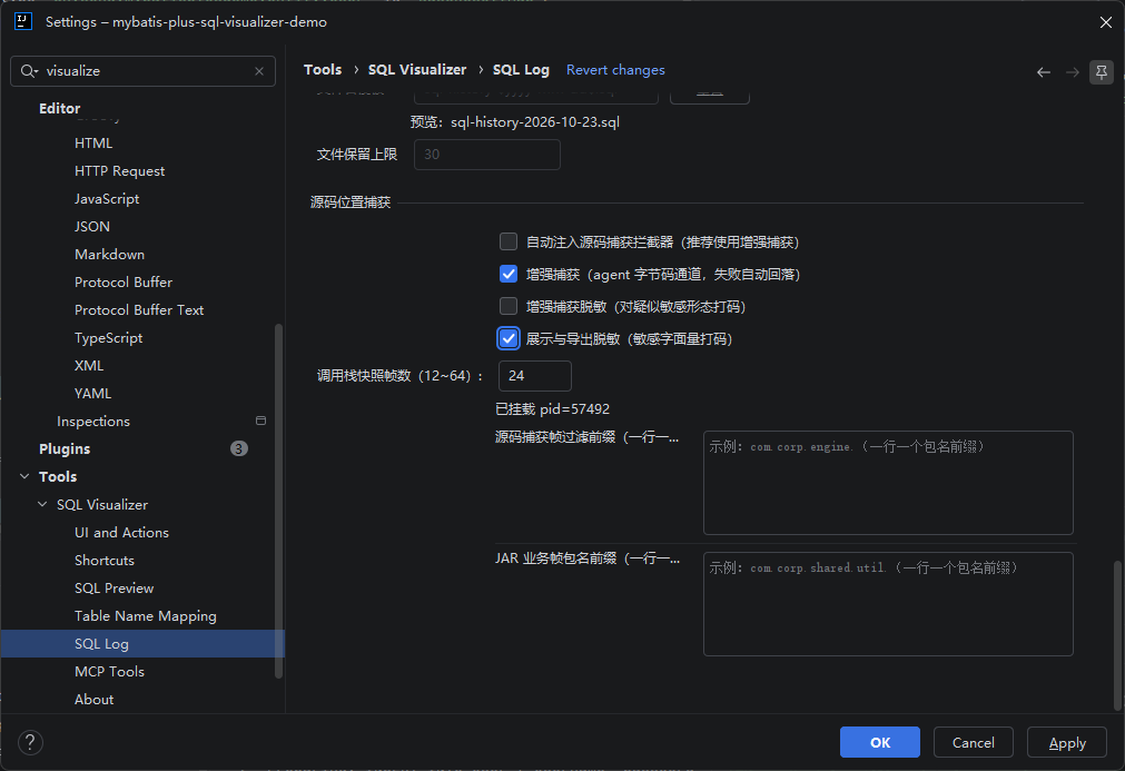
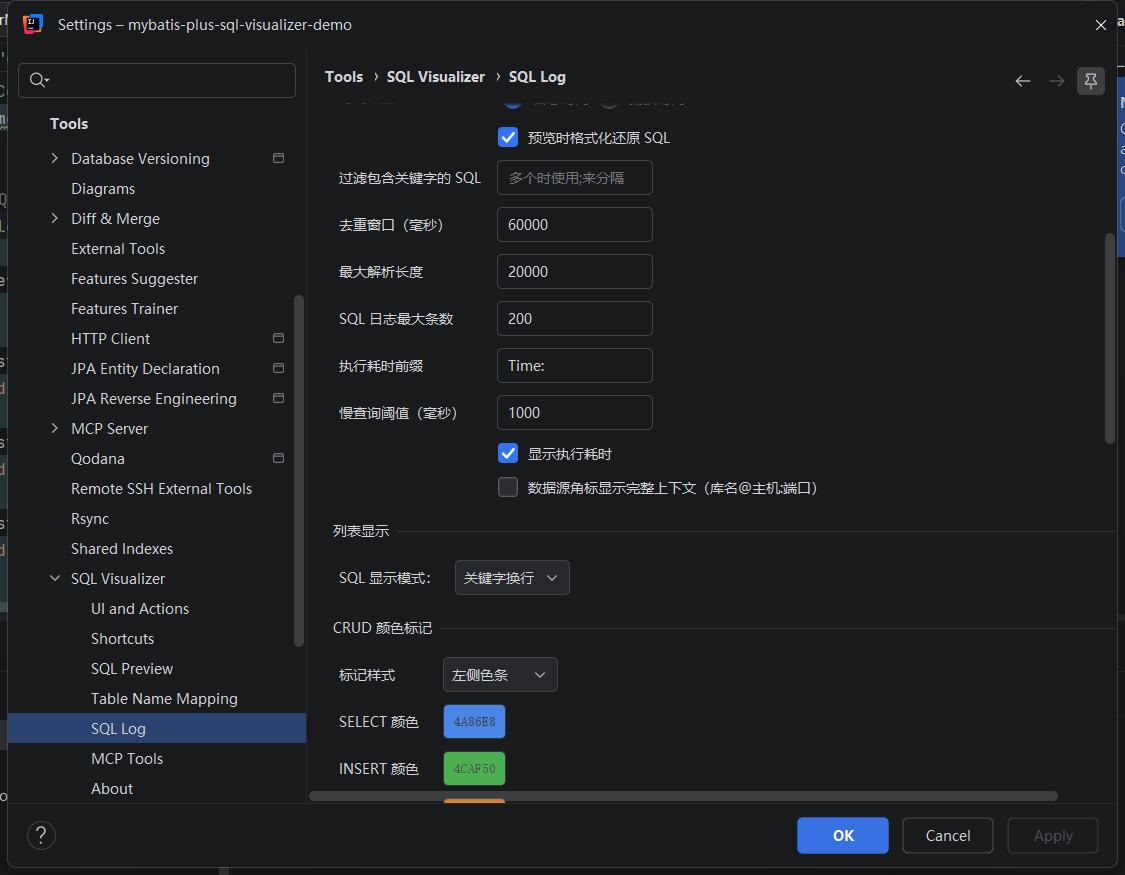
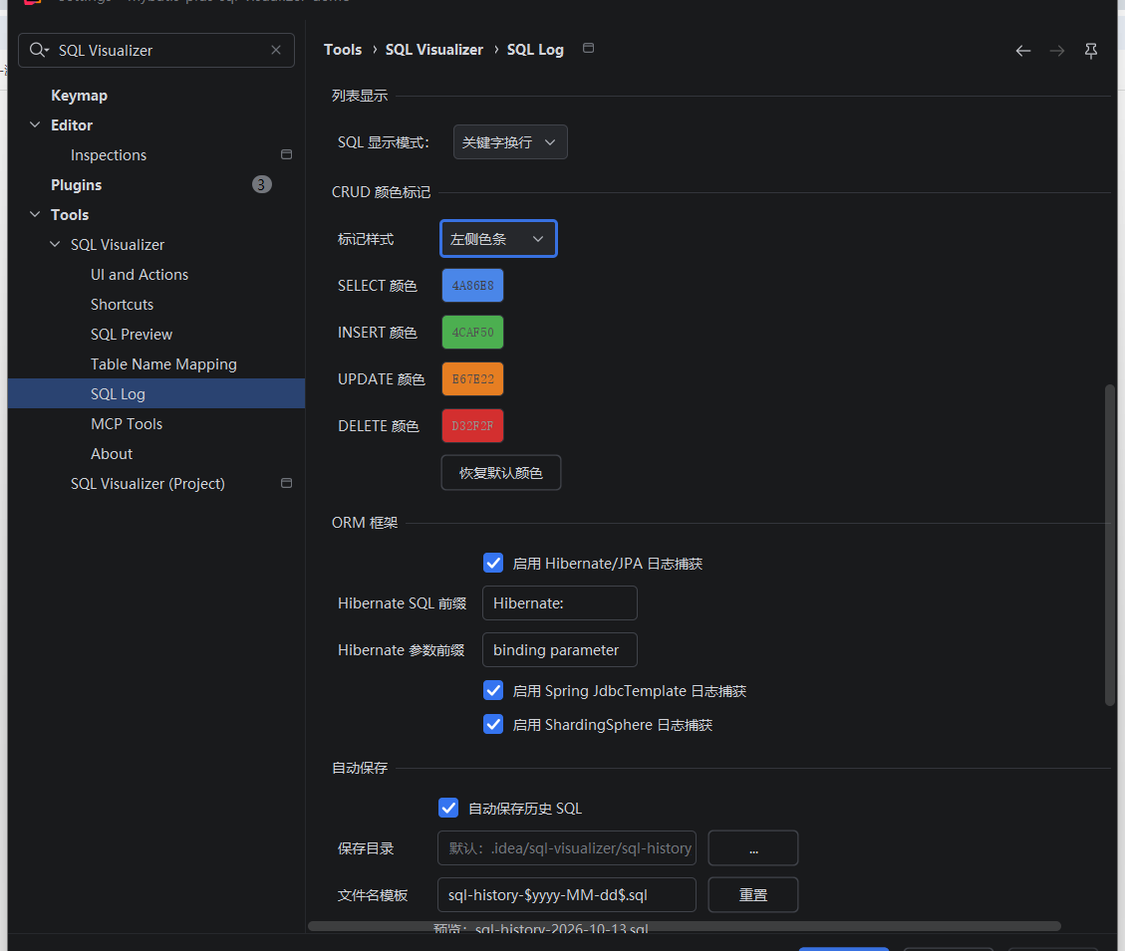
| Setting | Default | Description |
|---|---|---|
| SQL / Param Prefix | Preparing: / Parameters: | Console log recognition prefix |
| Auto-start Listening on Project Launch | Off | Starts capture automatically when the project opens or runs (same as clicking "Capture"); enabling the setting itself does not start listening immediately — it triggers on the project run. A manual stop suppresses auto-start for the session, the next project run resumes it |
| Auto-Open Window on SQL Found | On | Auto-expands the log tool window when SQL is captured (60s debounce, never steals focus); a manual close suppresses auto-open for the session, restored by re-enabling the setting, restarting the IDE, or (with auto-start listening on) running the project again |
| Stop Capture on Tool Window Close | Off | Automatically stops capture when the log tool window is closed |
| Auto-Inject Source-Capture Interceptor | Off | Trigger-style switch: checking it immediately generates the SqlSourceInterceptor and config class in your project once (skipped if already present); after restarting your app, live logs carry the source location. See SQL Log Tool Window · Jump to Source |
| Enhanced Capture | On | Bytecode-instrumentation capture channel, on by default and enabling it is the consent (no injection dialog): the very first run captures fully with the agent attached — no SQL logging setup needed on the application side, and real parameters, millisecond-accurate durations, affected rows and true source locations come out of the box; application processes already running are picked up by the rescan when listening starts; turning the switch off falls back to console capture; stopping listening also stops in-app collection |
| Enhanced Capture Desensitization | Off | Masks parameter values that look sensitive (real values collected by default) |
| Display and Export Masking | Off | Masks sensitive literals at the display layer: password-like column names and ID-card / mobile-number-shaped values become *** in SQL log summaries, the click-preview overlay, and history / log export (CSV/TSV/TXT/SQL). Display text only — entry data, parameter presets and history files keep their original values, and turning it off restores the display. See SQL Log Tool Window · Display Masking |
| Call-Stack Snapshot Frames | 24 | Total frames kept in the preview's call stack (range 12–64); sampled at both ends — JDBC / engine-side frames at the top, 8 business-side frames always kept at the bottom, joined by an omission marker. Changes are hot-pushed to the agent on save, no application restart. See SQL Log Tool Window · Jump from the Call Stack |
| Source-Capture Frame Skip Prefixes | Empty | Framework frame prefixes skipped when tracing enhanced-capture jumps up the call stack (one per line); live list and history panel share the same resolver |
| JAR Business-Frame Prefixes | Empty | Package prefixes of in-house business tool libraries that run as dependency JARs (one per line): once registered, source jumps land on the SQL line inside the tool class instead of the upper caller line; use together with "Source-Capture Frame Skip Prefixes" |
| Timestamp Display | On | Whether the time column appears in the entry list |
| Timestamp Source | Log time | "Log time" shows the original time parsed from the log line (common formats recognized automatically, falling back to capture time when absent); "Capture time" shows when the plugin captured the log. The timestamp format setting applies to both sources alike |
| Dedup Window | 60000 ms | Same SQL (whitespace-insensitive) doesn't reappear within the window; toggling "Remove duplicate SQL" trims existing duplicates immediately |
| Duration Prefix | Time: | Custom prefix for parsing execution time from logs (compatible with p6spy / MyBatis-Plus timing output) |
| Slow Query Threshold | 1000 ms | Durations at or above this are flagged as slow queries in red |
| Auto-Save SQL History | Off | Captured entries are saved in full to the history file (not limited by the list's max-entry count) for the "History" tab |
| History Directory / File Name | Empty (default path) / sql-history-$yyyy-MM-dd$.sql | History save location and naming template, with date placeholders supported |
| History File Retention Limit | 30 | When the save directory holds more history files than this, the oldest are cleaned up automatically to keep the disk from growing without bound; 0 = keep everything |
| Remove Lines Containing | Empty | Filter log lines containing specified keywords |
| Show full data-source badge context | Off | Off (default) shows only the database type in the target badge (e.g. [MySQL]); on shows the full connection fact ([MySQL · database@host:port]). Applies to log and history entries immediately; persistence and search are unaffected, and entries without connection facts render unchanged |
| CRUD Color Markers | Left color bar | Log / history lists colored by statement type (default blue / green / orange / red); three styles (left color bar / full-row tint / off), four customizable colors with one-click restore to defaults; the "Type Filter" popup checkboxes carry color swatch legends. The two DDL tiers (CREATE/ALTER/RENAME and DROP/TRUNCATE) reuse the insert / delete colors with a dashed bar to tell them apart, and can be filtered separately |
Scope of source-interceptor injection and project-type boundaries (When to read: injecting in a multi-module project or hitting an "unrecognized project type" dialog)
"Auto-Inject Source-Capture Interceptor": multi-module projects first show a dialog to pick the injection scope (all selected by default); when the project type can't be recognized (not a Spring Boot + MyBatis-Plus project), the dialog instead guides you to enable enhanced capture in one click (the enhanced channel does not depend on project type).
Format validation and activation of the two prefix fields (When to read: a format error appears after registering, or you want to confirm it took effect)
The "Source-Capture Frame Skip Prefixes" and "JAR Business-Frame Prefixes" fields are validated as you type (letters, digits, underscore, $ and dots only, a trailing dot recommended); invalid formats, duplicates within one field, or the same prefix registered in both fields are flagged below the inputs with a one-click fix (cross-field conflicts keep the skip side); changes take effect via hot push after save (no application restart needed).
Data Directory
History SQL and execution temp files live under .idea/sql-visualizer/ in your project (history files in its sql-history/ subdirectory). Since v2026.9.2 this directory is renamed from mybatis-plus-sql-visualizer; old directories are no longer read — history starts fresh in the new location after upgrading.
Below the "Auto-save" group there are three independent cleanup entries:
| Entry | Scope |
|---|---|
| Open capture history directory | Only opens the capture history directory in your file manager; deletes nothing |
| Clear preview SQL history… | Clears preview history (including favourites, tags and per-entry parameter snapshots); parameter history and named presets are untouched |
| Clear parameter history / presets… | Clears parameter history and named presets; stale caches and late write-backs in already-open panels are invalidated too |
The three are independent: clearing preview history does not delete parameter snapshots, and clearing parameter history does not touch history files.
UI & Operations
| Setting | Default | Description |
|---|---|---|
| Show Preview SQL Icon in Gutter | On | Wrapper anchor line gutter icon entry |
| Detect SQL Embedded in Generic XML (leaf tag text/CDATA) | On | In-house framework XML (root element name not fixed, SQL inside custom tags as CDATA/text) also shows the preview icon: a leaf tag whose text starts with SELECT / INSERT / UPDATE / DELETE etc. is claimed, with no reliance on root element names |
| Show Whitespace in Plugin-Built Editors | Off | Show space, tab and line-end markers in the editors the plugin builds (SQL preview, Log → SQL, click preview, rollback SQL, SQL input, parameter import, SQL → Java, etc.), handy for spotting stray blanks in dynamically assembled SQL; display-only — the SQL text is untouched, and when off (the default) the IDE-wide "show whitespace" preference applies |
| Render JOIN Diagram with IDE-Native Graph Framework | On | JOIN diagrams use IDEA's native Diagrams engine (zoom / auto layout / fold / export); falls back to the built-in renderer when the Diagrams plugin is absent or rendering fails |
| UI Language | Simplified Chinese | Plugin UI language (English / Follow System selectable) |
| Shortcuts | Alt+Shift+Q / Alt+Shift+J | SQL preview / SQL → Java respectively |
Gutter icons grouped by source: beyond the table above, the preview icons in the left gutter are split into six independently toggled source groups (mapper XML statements / annotation SQL (@Select family) / JPA·HQL family / JdbcTemplate string SQL / generic embedded XML fallback / Wrapper chains and method-name string SQL) — switch a group off and that kind of code stops showing gutter icons, handy when you only care about one kind of SQL in a project.
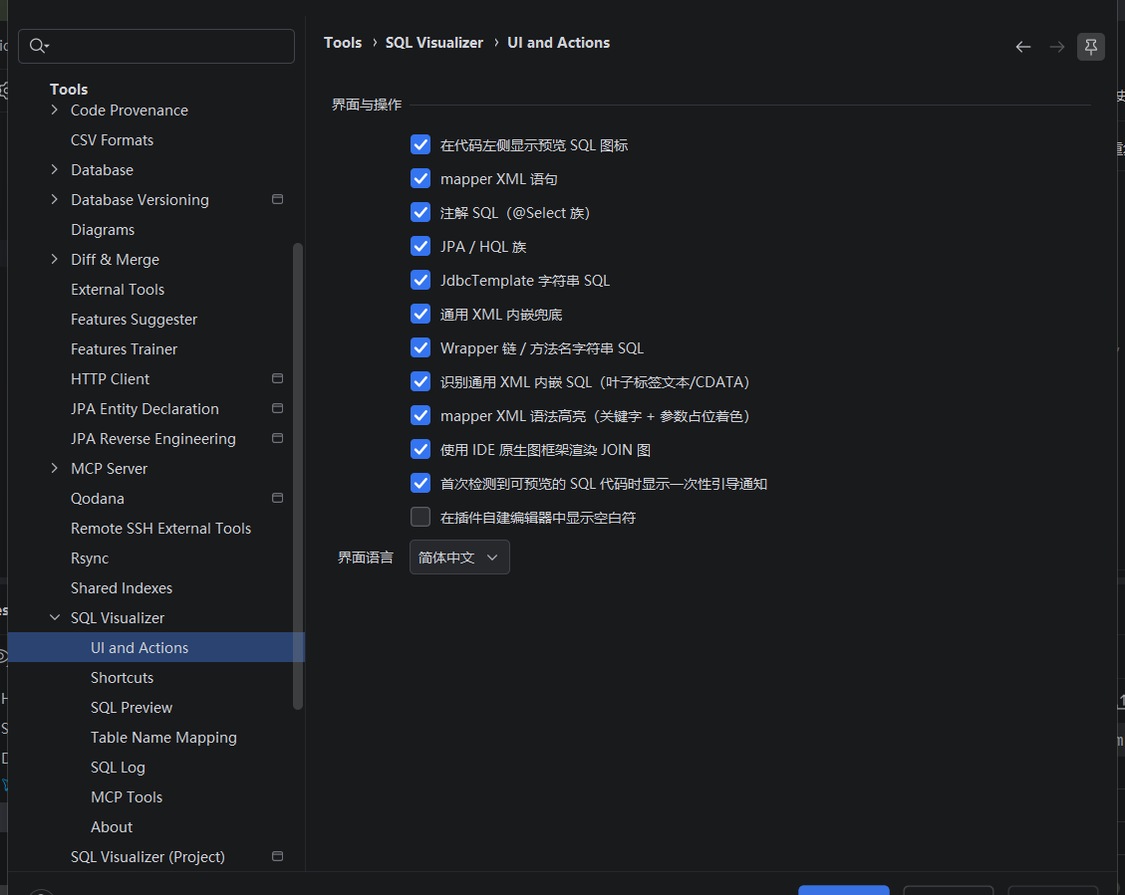
mapper XML syntax highlighting: the plugin injects its own syntax colouring into mapper XML — statement keywords, #{} / ${} parameter placeholders and inline SQL text are coloured separately (the "mapper XML syntax highlighting (keywords + parameter placeholders)" checkbox in the screenshot above is its master switch). Turn it off and mapper XML falls back to the IDE's native XML colouring.
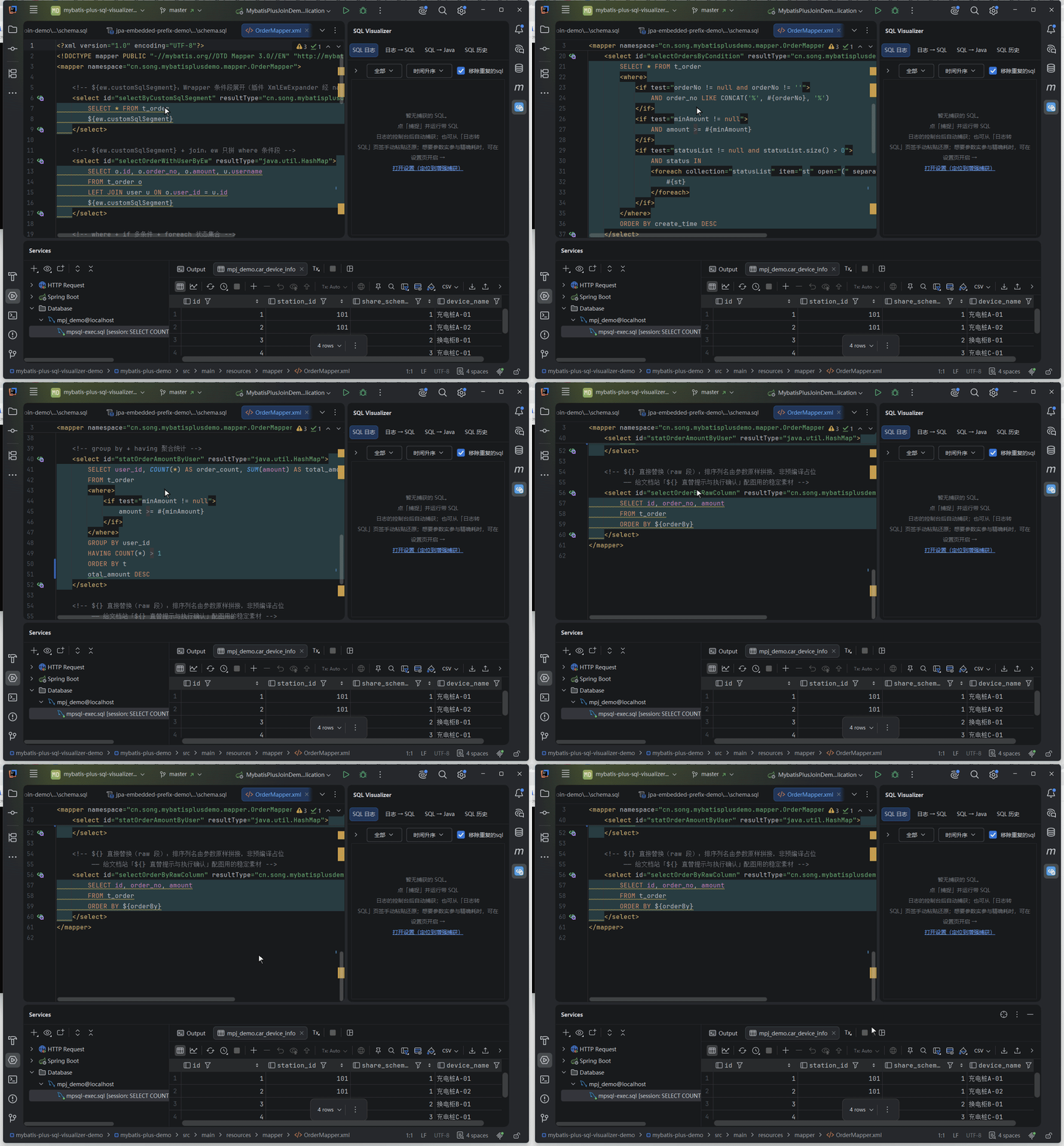
Mapper two-way navigation icons and peer yielding: the gutter icons that jump between mapper XML statement lines and Mapper interface method lines (see XML Preview · Mapper Two-Way Navigation) obey the master switch and the "mapper XML statements" group switch above. There is also a dedicated setting, "Yield Mapper navigation icons when a peer MyBatis navigation plugin is present" (on by default, in the same block as the gutter group switches): when a peer MyBatis navigation plugin (currently MyBatisCodeHelperPro) is detected as enabled, these two icons hide so they don't stack with the peer's own arrow on one line; turn it off to keep this plugin's icons even when the peer is present.
MCP Tools
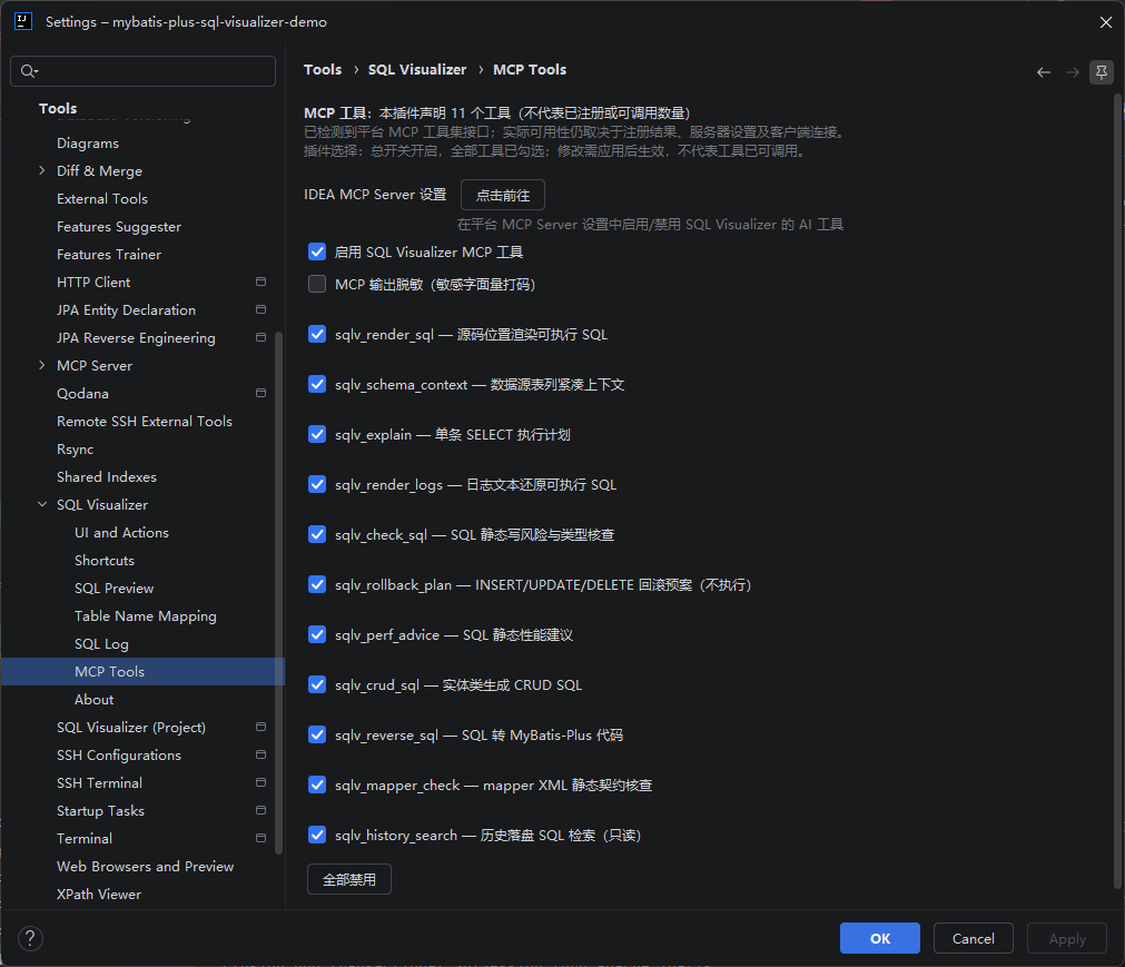
The plugin exposes 11 read-only tools to AI agents (Claude Code / Cursor / AI Assistant, etc.) through the platform's MCP Server; the "MCP Tools" subpage in settings provides the gating:
For the tool surface and version requirements, see MCP Server Tools.
- Master switch: enable/disable the plugin's MCP functionality as a whole
- Per-tool enable/disable for all eleven tools, plus "Enable All / Disable All" quick buttons
- Changes take effect immediately — no IDE restart needed; disabled tools are not just removed from the list — the execution entry re-checks the switches before every call, so an external session calling a disabled tool by name gets a
TOOL_DISABLEDerror - These switches gate the plugin's own tools only; the IDE-wide "Enable MCP Server" toggle under Tools → MCP Server is the platform master switch (other plugins and platform tools share the same service), and the two are independent — with the plugin's switch off, the platform service keeps running, while the plugin removes the
sqlv_*tools from the agent's tool list dynamically through the platform's tool-filter extension, no restart needed
Banned APIs
The "Banned APIs" subpage moves the team's hard rule ("these lines are not allowed") from grep-during-review into the editor. Rules are shared across projects (stored in mp-sql-visualizer-banned-api.xml), and edits apply immediately — there is no OK / Apply button.
| Field | Meaning |
|---|---|
| Class | Exact mode takes a fully-qualified name (com.acme.LegacyDao); regex mode matches the whole string (com\.acme\..*) |
| Match mode | Exact or regex — decides how the Class field is read |
| Method name regex (optional) | Whole-string match; leave empty to cover every method of the class |
| Level | Error (red) / Warning (yellow) |
| Description (required) | Why it's banned and what to use instead — both the editor tooltip and the scan report quote this text |
- Matching calls are underlined red or yellow in the editor, with your description on hover; when a single site is fine, suppress it with
@SuppressWarnings("BannedApi") - With no rules the inspection does nothing at all: it stays out of the daemon, so installing the plugin doesn't suddenly litter the editor with warnings
- Matching is by the method's declaring class: for overridden methods write the rule against the subclass; only Java call sites are covered today
- "Count Banned API Usages" in the Tools menu runs one read-only scan over the project's Java files, summarising hits per rule with a detail list (capped at 500 entries) and opening the report in the editor; during indexing it asks you to try again later
External SQL Template
A fallback channel for projects whose SQL doesn't live in MyBatis: formats like a <sqls> root, statements as <sql id="…"> and :named parameters aren't something the plugin parses — rather than teaching it your grammar, point it at your own render command and use that as the function. Off by default; while off, sqlv_render_sql behaves exactly as before and no process is ever started.
| Setting | Default | Meaning |
|---|---|---|
| Render custom template statements with an external command | Off | Master switch; while off this path is never taken |
| Statement tag names | sql | Comma-separated XML tag names (e.g. sql,query), case-insensitive; a caret inside these tags routes to the external renderer |
| Render command | empty | Launched as an argument list (never through a shell), one token per argument; quote arguments containing spaces with "…" / '…' |
| Timeout (seconds) | 10 | Clamped to 1–120; on timeout the process is killed |
| Working directory | empty | Empty means the project root; a non-existent directory also falls back to the project root |
Placeholders available to the command: {template} the template file path, {sqlId} the statement id, {paramsJson} the JSON passed to sqlv_render_sql (empty string when omitted). For example node scripts/render.js {template} {sqlId} {paramsJson}.
A few boundaries worth stating plainly: the command runs on your machine, as you; the plugin neither validates its content nor sandboxes it — it is equivalent to typing the command yourself. Only the three placeholders above are substituted, and nothing else is interpreted by a shell (so globs, pipes and variable expansion won't work). When the command fails, times out or returns nothing, the call returns EXTERNAL_RENDER_FAILED rather than silently falling back to mapper logic and handing back a plausible-looking wrong answer. The parameter JSON goes to the command verbatim and never into logs or error text.
Today this channel applies to the MCP sqlv_render_sql tool only; gutter previews and the preview panel still follow the plugin's built-in recognition rules and don't understand custom templates.
Project-Level Settings
Settings > Tools > SQL Visualizer (Current Project) offers 10 overrides below the master switch: database dialect, parameter substitution, SQL formatting, logic-delete injection, logic-delete value, table prefix / suffix, table-name inference strategy, ignored fields, and calibrate columns against the data source (4 of them are checkboxes). Enhanced capture is a global setting and is not part of the project-level overrides.
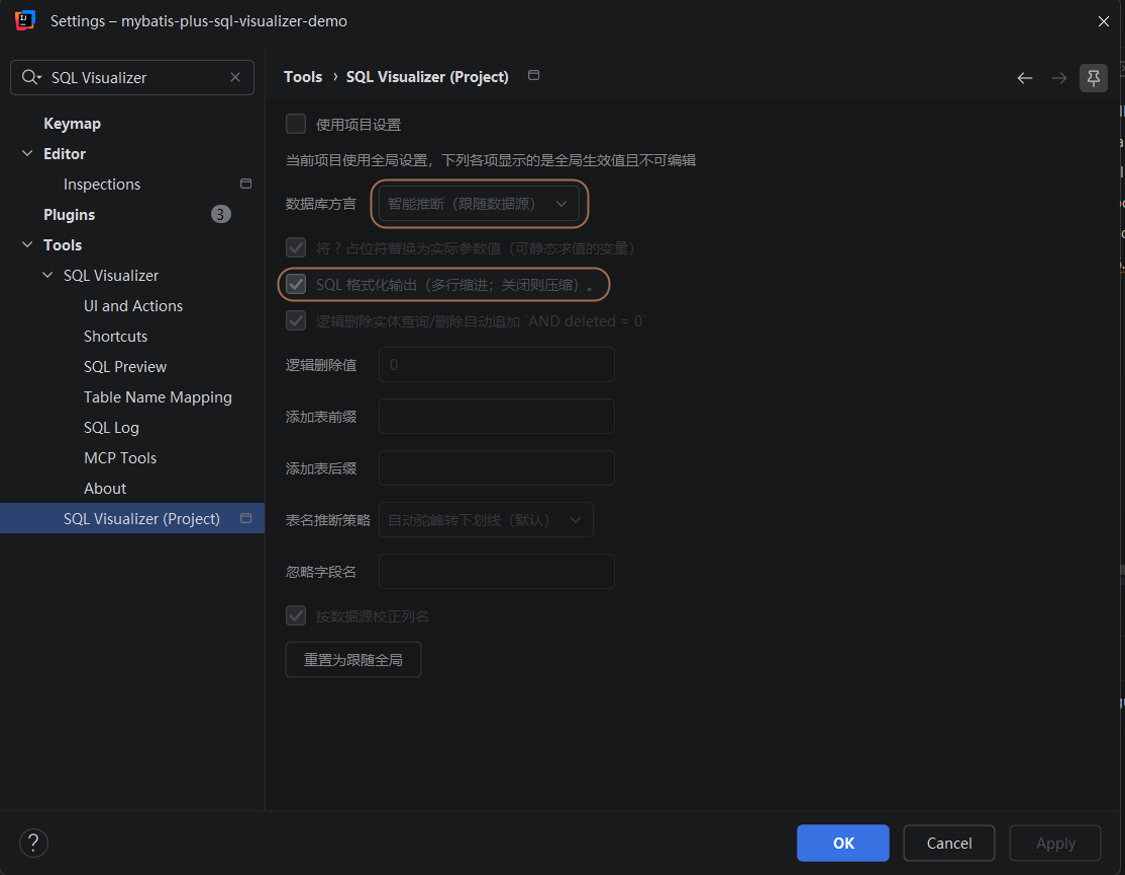
- When the "Use project settings" master switch is off, all 10 override rows gray out and show the effective global values — what you see is what runs; a "Reset to follow global" button clears this project's overrides in one click
- With the dialect on "Auto-infer", the project level takes precedence over the global decision
- Page-local search and the IDE settings search share one source: a setting is findable in both, covering global and project-page entries
- Import / export covers global settings only; project-level settings are not included
Update & Diagnostics
| Setting | Default | Description |
|---|---|---|
| Auto-Check on Startup | Off | When enabled, silent check of the Gitee early-access channel on IDE launch with a notification when a new version is found; when off, stable updates come from JetBrains Marketplace |
| Ignore This Version | - | Notification action to skip startup reminders for the current version (persisted across restarts); manual checks in settings are unaffected |
| Check Update / Download & Install | - | Manual check, one-click download & install; the new version hot-swaps into the running IDE and takes effect immediately (no restart), with automatic fallback to the restart script when dynamic install isn't supported or any step fails — never left in an intermediate state; a failed check distinguishes "network unreachable / update channel 404 / already up to date", with Marketplace and Gitee Releases fallback links in the 404 case |
| Plugin Cache | - | Show cache size and entry count (entity lookup / resolution / Wrapper preview, all scopes), one-click clear |
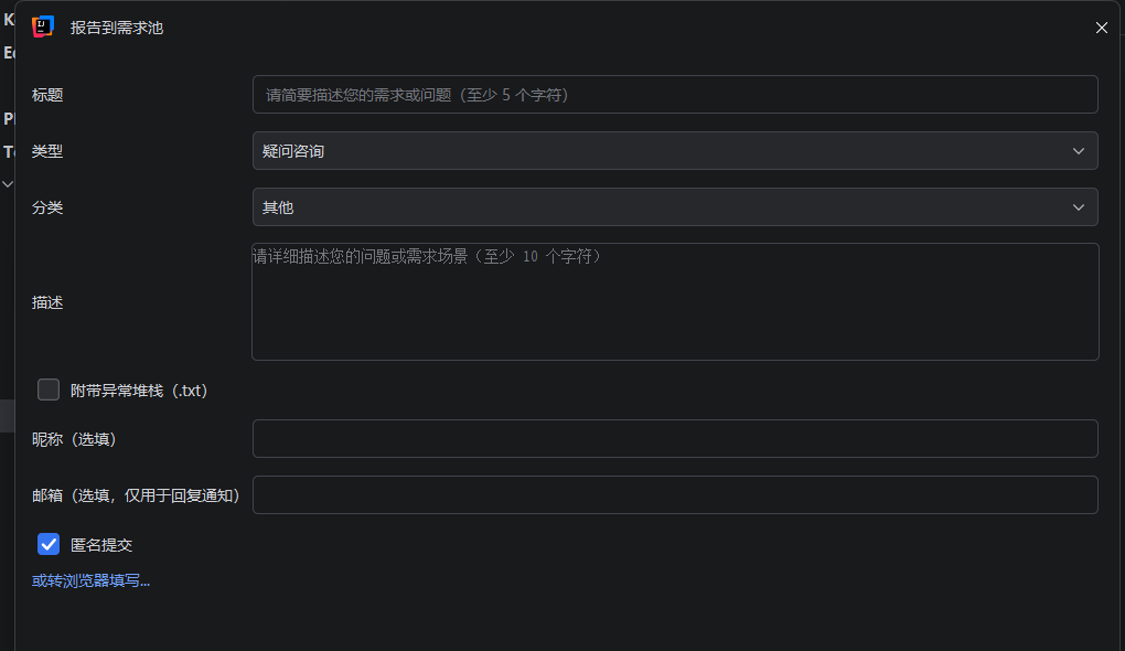
| Report a Problem / Feedback Pool | - | Manual feedback entry, opening a report dialog straight to the feedback pool; type / category / description required; IDE and plugin versions are attached automatically |
| Internal Build Number | - | Unique per build, one-click copy for bug reports |
| Settings Import / Export | - | Import / export settings as JSON; covers global settings only (project-level settings are not included), with the result shown inline next to the buttons |
The settings page's "Update & Diagnostics" area (Settings > Tools > SQL Visualizer > About) gathers these entries in one place, and "Report a Problem…" opens this dialog:
Privacy and dedup rules of the feedback dialog (When to read: you care about the upload scope or about duplicate reports)
"Report a Problem / Feedback Pool": by default only the exception class name and a stack-frame summary are prefilled; the full exception message and complete stack, plus the stack attachment, are opt-in checkboxes — uploaded only when checked, and they may contain local paths and class names. The same exception is deduplicated for 24 hours; the Help menu's "SQL Visualizer Feedback / Feedback Pool" entry and the IDE's internal error dialog offer one-click reporting too; reporting several entries selected in the IDE error list merges them into a single post (items beyond the rate-limit threshold are queued and sent staggered automatically); when a submission is rejected the dialog stays open and the status line shows the exact reason returned by the server — fix it and retry directly.
After a no-restart update, if the IDE shows an info-level "plugin was not completely unloaded" notice: it is a one-time notice from the IDE's GC watch window over the old classloader — the new plugin instance has fully taken over (extension points / services all rebuilt), the old instance is only transiently memory-resident and clears on the next IDE restart, with no functional impact.