


Offline & Intranet Environments
Every core capability of SQL Visualizer runs locally — the plugin works fully without internet access. This page covers which network calls exist, what to prepare for an air-gapped deployment, and how to point the update channel at your intranet.
Verdict: core features work fully offline
| Feature | Needs internet |
|---|---|
| Wrapper / XML / annotation / JPA / HQL SQL preview | No |
? placeholder substitution, dialect formatting | No |
| SQL → Java reverse conversion, CRUD SQL from entities and tables | No |
| Console SQL log capture and restore, SQL history | No |
| Enhanced capture (bytecode instrumentation) | No — capture points attach to your application's JVM on the local machine (on by default, no confirmation dialog); data stays in the local IDE, generating no network traffic |
| JOIN diagram, PNG / SVG export | No |
| Built-in help page | No (bundled local page) |
| Check for plugin updates | Yes (optional, off by default) |
| Submit feedback | Yes (optional, sent only when you click submit) |
| Execute SQL / EXPLAIN | Needs a reachable database; IDE downloads the driver when missing, see below |
Preview and restore run as local static analysis — no database connection involved. The one exception is the optional enhanced-capture channel: when enabled, capture points attach to your application's JVM on the local machine (on by default, no confirmation dialog — switch it off in settings), and the collected data is only displayed inside the local IDE — again with no network requests.
Network behavior
There are exactly two network endpoints, both optional, both degrading gracefully without blocking the UI:
| Endpoint | Target | Default | On failure |
|---|---|---|---|
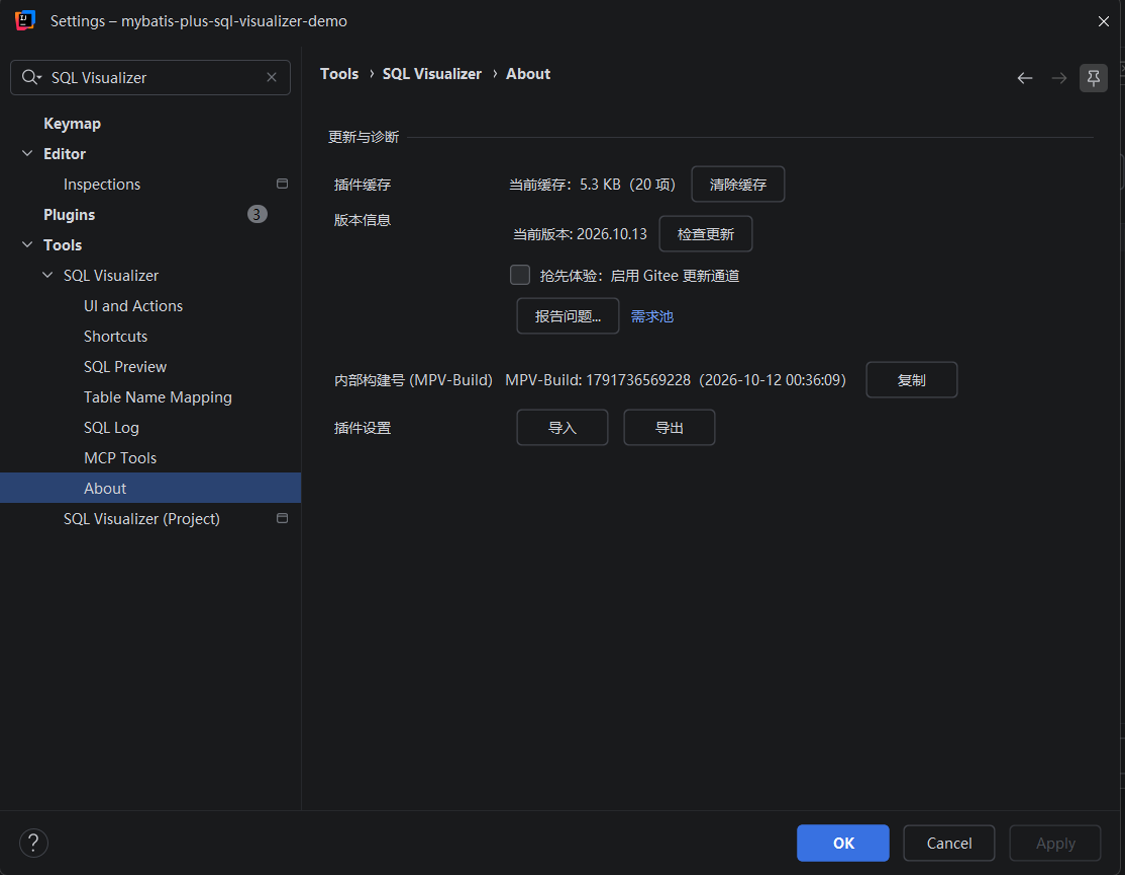
| Update check | Gitee repository manifest | Off. Settings > Tools > SQL Visualizer > Update & Diagnostics > Early Access: enable Gitee update channel, unchecked by default | Startup check is skipped silently; a manual check in settings shows "check failed: …" |
| Feedback submission | Official feedback pool | Sent only when you click submit | The dialog status line shows the reason; copyable and retryable |
Beyond that:
- The plugin reports no usage data and has no analytics
- No account or license validation — no sign-in needed on first run
- Your code and SQL are never uploaded — only what you review and confirm in the feedback dialog leaves your machine
- No embedded network service — the plugin listens on no port
- No DTD fetch when parsing mapper XML (external entity resolution is disabled), so XML parsing will not hang on an unreachable DNS
Execute SQL and JDBC drivers
"Execute SQL" and "Explain" go through the IDE's native Database console. The plugin neither connects to databases nor downloads drivers itself — but when a driver is not cached locally, it is the IDE platform that tries to download it, and that step fails on an air-gapped network.
Prepare one of the following before deploying to an intranet:
- Point to a local driver jar: open the Database tool window → right-click the data source → Properties → Drivers → add the jar under "Driver files"
- Use an internal Maven repository: switch the driver configuration on the same page to coordinates served by your Nexus / Artifactory
Once the driver is in place, execution and EXPLAIN behave exactly as they do online.
What a missing driver looks like
Execution reports "data source initialization failed" or waits indefinitely for a connection, and the plugin guides you to the Database tool window — that is the signature of a missing driver, not a plugin defect.
Intranet update channel
To distribute plugin updates inside your network without any external traffic, override the manifest URL with a system property:
-Dmpvs.update.manifest.url=http://nexus.intranet.local/plugins/update.jsonSet it in the IDE's vmoptions file, its launch script, or alongside idea.properties.
Both the channel switch and the version info live in the settings page's "Update & Diagnostics" area (Settings > Tools > SQL Visualizer > About):
Manifest format
A JSON document; only version and downloadUrl are required:
{
  "version": "2026.9.18",
  "downloadUrl": "http://nexus.intranet.local/plugins/mybatis-plus-sql-visualizer-2026.9.18.zip",
  "changeNotes": "What changed in this release (plain text,\n line breaks allowed)",
  "publishDate": "2026-09-15",
  "sinceBuild": "243"
}| Field | Required | Notes |
|---|---|---|
version | Yes | Must be higher than the installed version for an update to be offered |
downloadUrl | Yes | Plugin package URL; any internal file service works, there is no domain allowlist |
changeNotes | No | Plain text shown in the update notification and settings page |
publishDate | No | Release date |
sinceBuild | No | Minimum IDE build; a higher value warns about incompatibility but does not block the download |
The manifest URL and the package URL are independent — host both internally, or override only the manifest if your network can still reach the download host.
The property is read once, at IDE startup
mpvs.update.manifest.url is resolved and fixed during process startup, so changing it later has no effect until you restart the IDE. A line update manifest url overridden by system property: <your url> is written to the startup log — use it to confirm the override took effect.
The override only changes where the manifest and the package are fetched from — download and install still go through the plugin's built-in one-click flow: the new version hot-swaps into the running IDE (no restart), with automatic fallback to the restart script when dynamic install isn't available. Exactly the same behavior as the internet update channel.
Building and releasing is a separate matter
Everything above concerns the runtime. If you need to build this plugin or publish your own release inside a fully isolated network, you additionally need Maven repositories (the project defaults to an Aliyun mirror plus Maven Central) and the JetBrains plugin portal (for Gradle plugins and target IDE distributions), which require an internal mirror and a warm offline cache.
That is independent of installing and using the plugin — running with no internet access at all is entirely viable.
Related
- Compatibility & Requirements — IDE versions, installation channels
- FAQ — quick troubleshooting