


Getting Started
Get up and running with SQL Visualizer in 3 minutes.
Installation
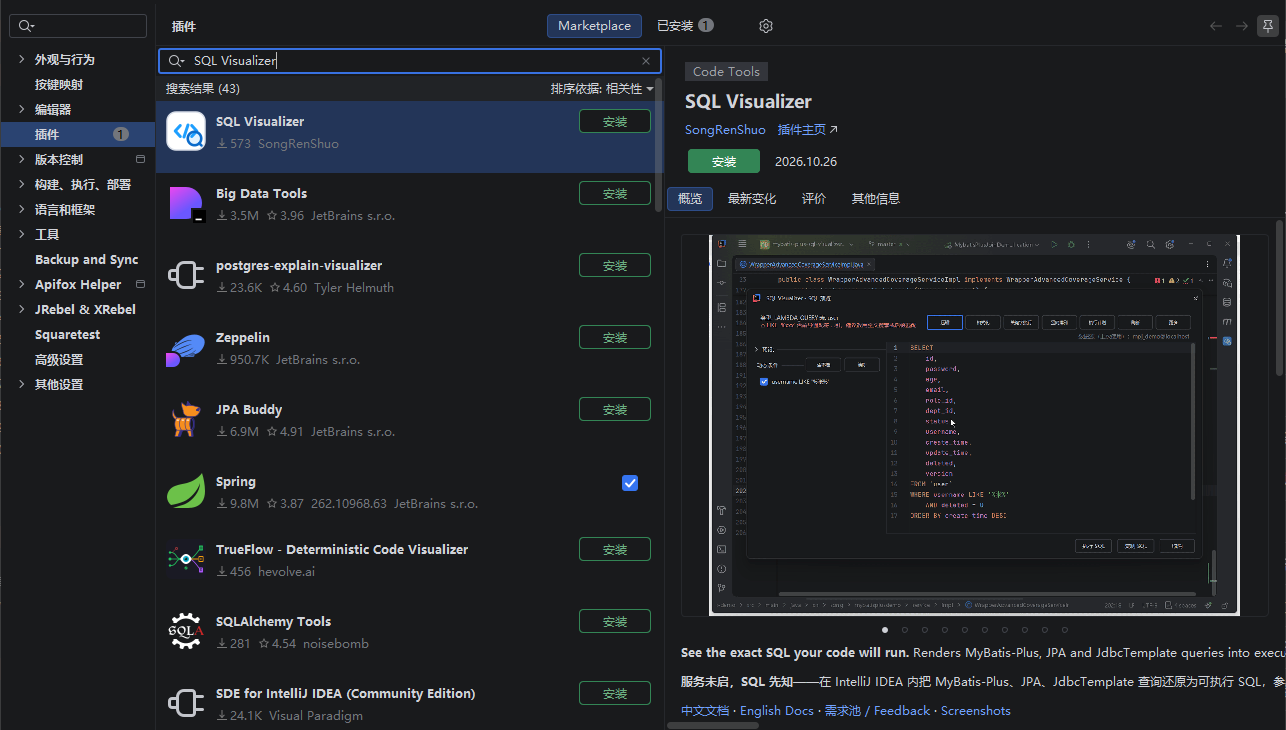
Method 1: Install via IDE Plugin System (Recommended)
- Open Settings/Preferences > Plugins > Marketplace
- Search for
SQL Visualizer - Click Install
- Restart IDE
Method 2: Manual Download & Install
- Download the plugin from JetBrains Marketplace or Gitee Releases
- In IDE, open Settings > Plugins > ⚙ > Install Plugin from Disk...
- Select the downloaded plugin package (no extraction needed)
- Restart IDE
First Preview
Once installed, on any MyBatis-Plus Wrapper code:
- Click the plugin icon in the gutter on the left (it sits on the variable declaration line, e.g. the
queryWrapperline); or put the caret on any identifier in the chain (a variable or method name) and use the shortcut - Press Alt+Shift+Q (macOS Option+Shift+Q)
- Dialog shows the generated SQL
The caret must sit on an identifier — not on leading indentation
The shortcut requires the caret to be on a concrete code element — a variable name such as queryWrapper, a method name such as eq, or the chain call .list() all count; Parking it in the leading whitespace only yields a "no previewable SQL source at caret" notice; and the .eq/.ge in-chain lines carry no gutter icon by design (icons mark the variable declaration line only), so clicking the icon is the more forgiving entry point.
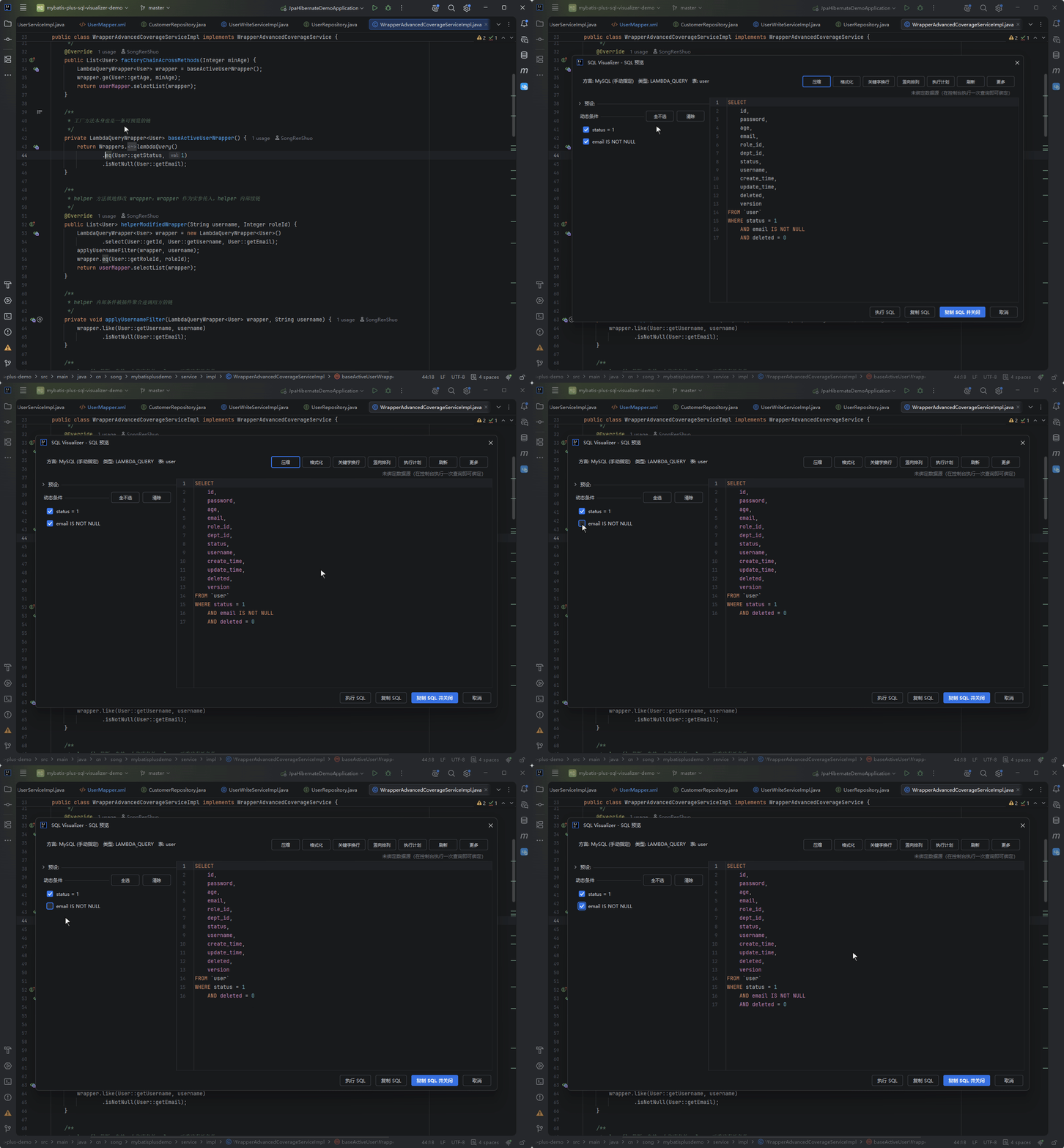
Once you can see the SQL, there is a bit more to try in the preview panel: the "EXPLAIN" button wraps the SQL into an EXPLAIN statement for the current dialect and submits it to the native database console, showing the real execution plan (requires IntelliJ IDEA Ultimate with a configured data source).
Next Steps
- Configuration — Learn all configurable options
- Features — Deep dive into each feature
- FAQ — Troubleshoot common issues