


SQL Log Tool Window
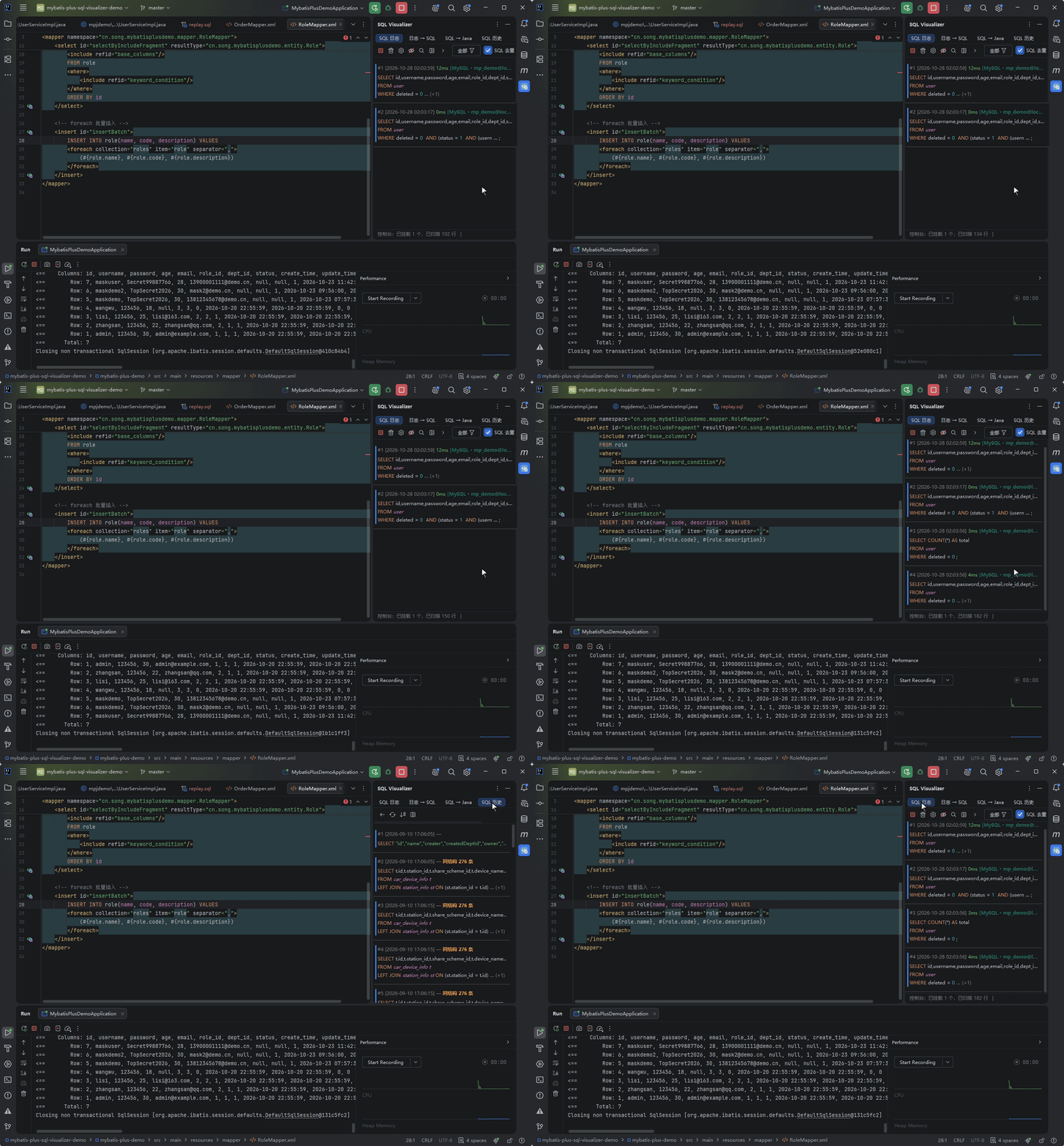
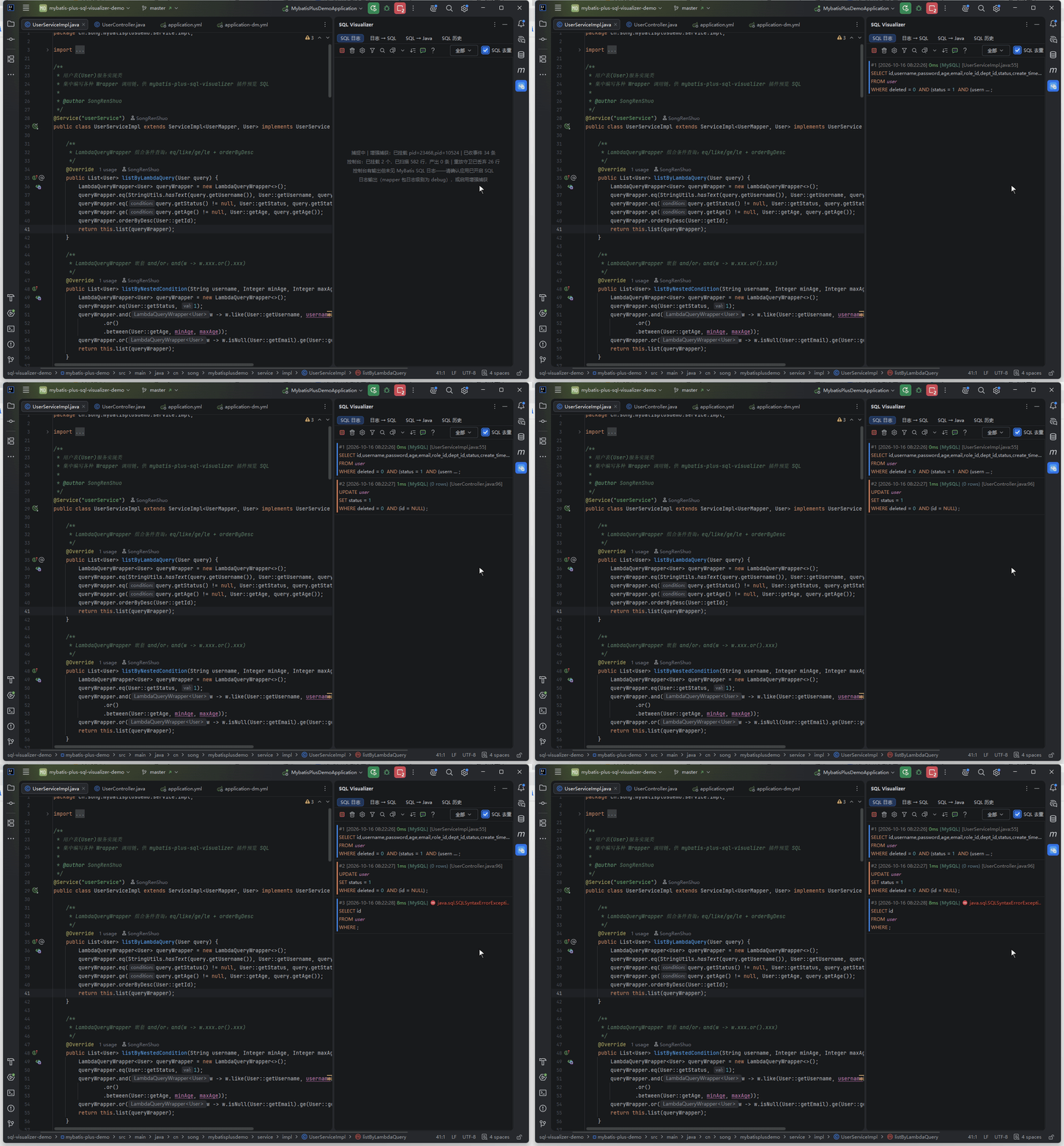
The clip shows a parameterized SELECT, an UPDATE with WHERE id=NULL that matches no rows (0 rows), and a syntax error from a fixed read-only SELECT. The restored SQL, literal parameter values, affected-row counts and error appear directly in the list.
Auto-captures SQL as it runs, restores everything into a unified list of executable statements, and jumps precisely to the source line that fired each SQL. Enhanced capture is the default channel and works out of the box; console capture is the no-code-change fallback.
Trigger Method
| Method | How |
|---|---|
| Manual capture | Sidebar "SQL Visualizer" tool window → the "SQL Log" tab → the "Capture" button (first in the panel toolbar) |
| Auto-listen | With "Auto-start listening on project launch" enabled in settings, capture starts automatically when you run / debug the project — no button click needed |
First-time onboarding: opening a code file that uses MyBatis-Plus pops a one-time pointer notification (once per machine, can be turned off in settings). The first successful capture in a session also pops a notification linking straight to the log panel.
A few details about auto-listen: enabling the setting does not start listening immediately — it triggers when the project runs. Clicking "Stop capture" suppresses auto-start for the rest of the session — it will not pop back on its own. As long as the switch stays on, the next project run starts capture again.
Two Capture Channels
Entries come from two channels, unified in one list with identical display and actions. Use enhanced capture by default — it works out of the box and carries the most data, and it is the recommended channel on this page; console capture is the no-code-change fallback for when enhanced capture isn't available or you'd rather not touch the application process at all.
| Channel | Source | Role |
|---|---|---|
| Enhanced capture (default, recommended) | Bytecode instrumentation attaches to your application's JVM on the local machine, collecting directly at the JDBC interface layer | No SQL logging setup needed in your app; parameters, durations, affected rows, errors, source locations and the call stack are all real structured data |
| Console capture (fallback) | Monitors the run console's log output | No code change and no injection, but it requires your app to print SQL to the console, parameter restoration depends on log format and level (TRACE in the common case), and source locations need the interceptor configured separately |
Enhanced capture is on by default and enabling it is the consent — there is no per-run injection dialog any more. Opening the project, the first run, a new process appearing, or ticking the setting all go straight to collection; the very first run captures completely (startup-phase SQL included), no project restart needed. Turn the switch off in settings to opt out and console capture takes over. Core capabilities:
- Real parameter values (desensitization off by default, can be enabled in settings), millisecond-accurate execution durations, affected-row counts and execution error messages — none of which console capture can produce, or can only approximate by correlating log text
- Entries carry a database badge (
[MySQL],[DM (Dameng)]etc.), inferred from the JDBC URL — all 14 dialect databases plus HSQL / GBASE covered - Source locations come from the real call stack, jumping straight to the code line that executed the SQL with no configuration at all (see "Jump to Source" below); console capture needs its own interceptor for the same precision
- Entries carry the full call-stack snapshot — hover the preview panel to see the whole call chain and click any frame to jump to that frame's source (see "Jump from the Call Stack" below)
- Collected data is only displayed inside the IDE on your machine — nothing is sent to any server; turning the switch off stops collection (attached capture points remain but stay idle)
![Enabling Show full data-source badge context in settings instantly switches entry badges from [MySQL] to [MySQL · database@host:port]](/demo/datasource-badge.gif)
Database badges show only the database type by default; enabling "Show full data-source badge context" in settings switches them to the full dialect · database@host:port form instantly (the clip above shows the switch).
Startup injection and switch behavior (When to read: you care about JVM injection mechanics or want to turn collection off entirely)
- On by default, enabling is the consent: the master switch ships on; ticking it or opening the project counts as authorization, with no injection dialog. Legacy "not yet confirmed" state is normalized to authorized on load, while an explicit opt-out is preserved.
- Rescan of running processes: when listening starts, application processes already running are scanned and attached directly — no confirmation step.
- Capture from the very start: with the master switch on,
-javaagentis written into the arguments before the Java run configuration launches, and the agent weaves in during the target JVM's premain phase — startup-phase SQL (framework init, data-source probes, Flyway / Liquibase migrations) goes straight into the enhanced channel instead of landing before the mount completes. Nothing is injected while the switch is off; any injection failure only falls back to the existing attach path and the console bridge, leaving the run configuration untouched. - Honest capability boundary notice: when injection fails and a dynamic attach (attach) succeeds instead, a notice says so plainly — "connections created before the attach are outside the capture scope; re-run the project for full coverage" (at most once per run).
- Injection scope:
-javaagentonly goes into real application run tasks; JVMs forked by Gradle / Maven test and IDE tasks (test,runIde, etc.) are never injected. - Zero-replacement capture: the agent never replaces JDBC objects on the host side — connections are kept as-is by default (only their URL is registered), and SQL plus bound parameters are captured via statement-level bytecode weaving, so host-side casts of the connection (such as to
DmdbConnection) are unaffected. To restore the old connection-wrapping form, opt in explicitly with-Dsqlvis.agent.wrapConnection=true(off by default — "never keep the application from starting" wins over coverage). Known boundary: drivers whose statement implementation classes are not on the weaving roster (GBASE 8s, HSQLDB and similar) skip the registered channel, but the interface-matching fallback below still applies. - Unknown-driver fallback (interface matching): databases whose driver class names were never registered can still be captured — during the attach round the agent reflectively matches already-loaded classes against the JDBC interfaces (
Statement/PreparedStatement) and weaves those, so the capture surface is decoupled from the dialect list. Three guards keep it under control: a cap on scanned classes, a time budget for fallback weaving, and automatic retreat to the pure whitelist after 3 consecutive failures (all tunable viasqlvis.agent.*system properties; invalid values fall back to defaults). Unknown shapes are never inlined during premain (a weaving failure there would keep the host JVM from starting) — candidates are recorded and woven by an automatic follow-up after attach (that follow-up thread never ran before because of a unit-of-time bug; fixed). The fallback deliberately excludes theaddBatch/clearBatchexits — unknown drivers read original local variables there, and weaving them could fail whole-class verification. - Liveness fallback: when the enhanced channel is attached but produces zero events while the console channel is actually parsing SQL out, the console channel is un-paused automatically and the fallback is disclosed in the panel (with hysteresis and de-duplication, on by default) — no more "enhanced attached, console short-circuited, nothing anywhere" silence.
- Attach self-check: per-attach counters (matched / woven / version-gate skips / fallback circuit-breaks) are parsed into the IDE-side diagnostics line, so attach effectiveness no longer has to be inferred from an empty panel.
- Quiet console: the agent's output in the application console is silent by default — only real degradations and circuit breaks are still reported (budget exhaustion, kill switch, registration blind spots and the like). To troubleshoot, append
logLevel=debugto the-javaagentargument to restore the full detail. - Turning it off: collection stops and console capture takes over so the list never runs dry; the setting can be re-enabled at any time, with no cooldown.
- About the warning: premain startup injection is the JVM's expected loading path and no longer produces the dynamic-attach warning; only when injection fails and falls back to dynamic attach (attach) may the application console on JDK 21+ show one agent warning (JEP 451) — expected behavior, a warning only, no impact on your app.
- Collection follows the listening state: stopping listening also stops in-app collection — no more capture-and-discard waste; re-enabling listening resumes it, and after the agent mounts on project startup the listening state is reconciled automatically, so a project started with listening off no longer collects for nothing.
Console-capture log formats and restore details (When to read: you only use the console channel and your logs are unusual or capture seems incomplete)
With enhanced capture none of this applies — skip it, along with the "log format / duration parsing" notes further down.
- Recognized formats: MyBatis
Preparing:/Parameters:; HibernateHibernate:+binding parameter; JdbcTemplate (statements wrapped across multiple lines are collected in full and brackets inside string literals don't cause premature truncation; forNamedParameterJdbcTemplatea named parameter whose value is a collection is restored element-wise —IN (:p)withparam=[a]becomesIN ('a'); logs interleaved by concurrent threads are restored in per-thread buckets, so parameters never get misattached or lost) - Mixed prefixes:
Preparing: SELECT ...(MyBatis default),==> Preparing: SELECT ...(Spring Boot), custom prefixes (configurable in settings) - Merging double-printed statements: when both Hibernate
show_sqland its logger print the same statement, the two paths merge into one entry with the parameters kept together — no zero-parameter leftovers, no false "parameter count mismatch" - Missing-parameter hints: if a statement had no parameter-binding log captured at all, the preview says so and guides you to enable TRACE level (for JdbcTemplate it names
org.springframework.jdbc.corespecifically); only genuinely incomplete parameters report a count mismatch - Statement-line-only projects: after 1 second of silence the statement is judged complete and handed over (JdbcTemplate on DEBUG only, Tomcat spawning a thread per request), instead of staying stuck at "N lines scanned / 0 produced"
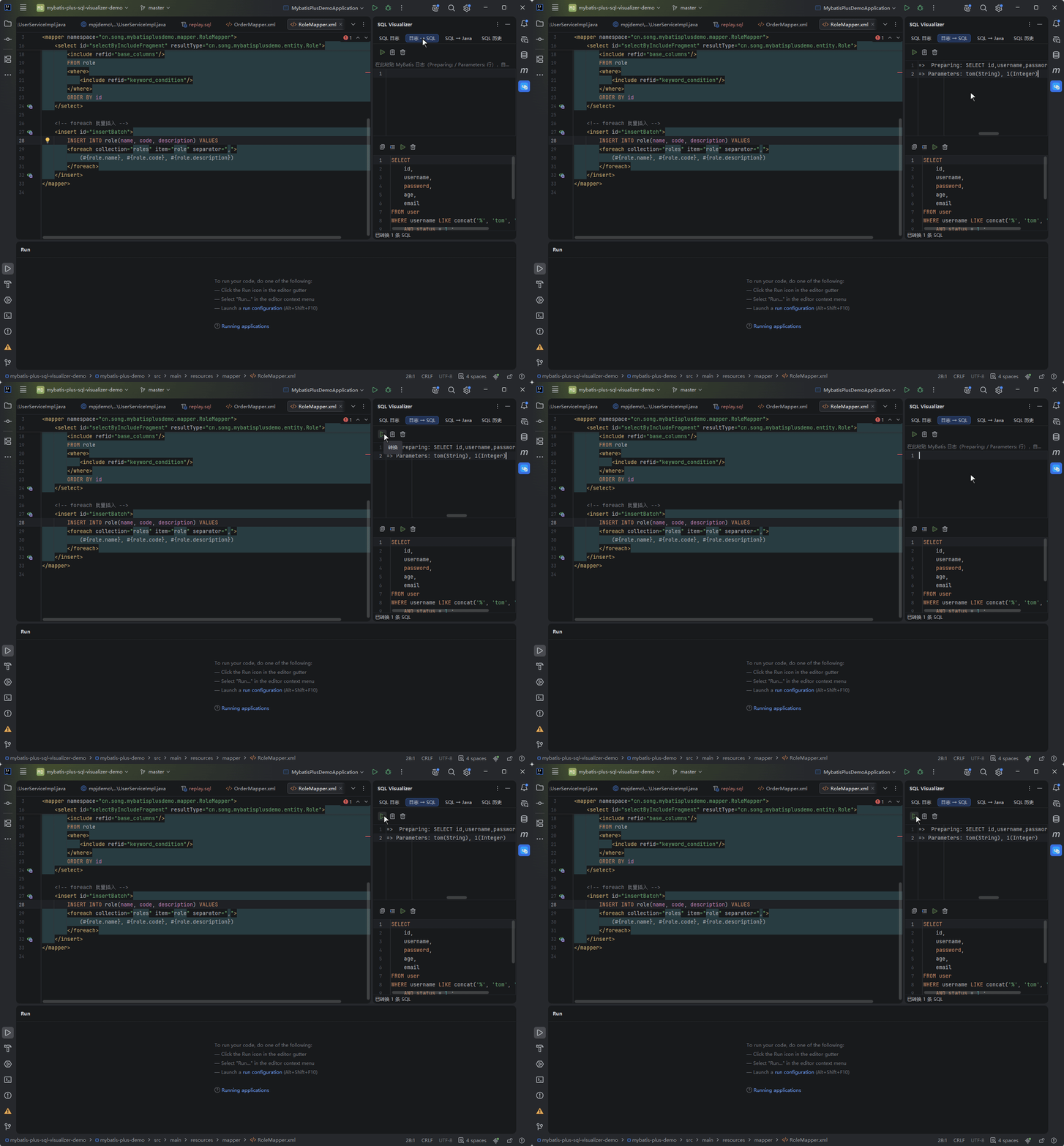
Manual log pasting lives in the panel's "Log → SQL" tab — paste MyBatis / Hibernate / JdbcTemplate log text and it is restored into executable SQL, or read straight from the clipboard in one click:
Features
Toolbar
Left to right, the SQL log tab's toolbar carries: capture, manage suppression rules (eye-with-slash), clear, sort by duration, sort by time, SQL type filter (funnel), follow, dedupe, timestamp display, community, help. Every icon is a semantic SVG shipped with the plugin (the same registry as the other three tabs), so it does not depend on the IDE theme's built-in icons.
The former "pause capture" entry is implemented but currently hidden, so it is not on the toolbar.
Auto-Open Tool Window
When the setting "Auto-open log window on SQL found" (on by default) is active, capturing the first SQL auto-opens the log tool window — debounced to once per 60 seconds, without stealing editor focus.
Open conditions and restore rules (When to read: the window "keeps popping back" or stops opening)
- It only follows SQL capture: if the switch is on but capture has never started ("Auto-start listening on project launch" also off), nothing opens; clicking "Stop capture" disables auto-open as well.
- Closing the window manually suppresses auto-open for the rest of the session; re-enabling the setting, restarting the IDE, or (with "Auto-start listening on project launch" on) running the project again restores it.
- Users who turned the switch off before the upgrade keep it off, unaffected by the new default.
Capture Diagnostics & Status
| Capability | Description |
|---|---|
| Zero-output diagnostics | When capture is running but not a single entry shows up, the panel's empty state names the blocker — the enhanced channel's current state (off / waiting for the app process / attached / heartbeat lost and fallen back / fallen back), the console channel's attached count and scanned line count — plus actionable next steps in three tiers ("waiting for the project to run / console has no output yet / output exists but no SQL matched") |
| Two-channel status bar | While capturing, a line is pinned to the bottom of the SQL log tab showing the console channel (N attached, N lines scanned) and the enhanced channel (off / waiting to mount / attached pid / fallen back; the "paused" state still exists in code, but the pause button is currently hidden so you will not see it in normal use) plus the received-event count; the whole line hides when capture is off |
| Settings status line | The enhanced-capture status line in settings renders all five states faithfully (attached / connection lost and fallen back / heartbeat lost and fallen back / connection established awaiting first heartbeat / enabled awaiting app process); it shows blank only while enhanced capture is off |
SQL Highlighting & Execution Time
- SQL summaries in the list are lexically colored: keywords, table names, strings, numbers and comments each in their own color; timestamps are dimmed gray, while durations are colored relative to the slow-query threshold
- Durations on enhanced-capture entries are the real measured execution time (millisecond-accurate); console capture instead parses them from the log, supporting p6spy
elapsed, MyBatis-PlusTime:output and a custom time prefix (configurable in settings, defaultTime:) - With slow-query threshold T (default 1000ms, adjustable), durations
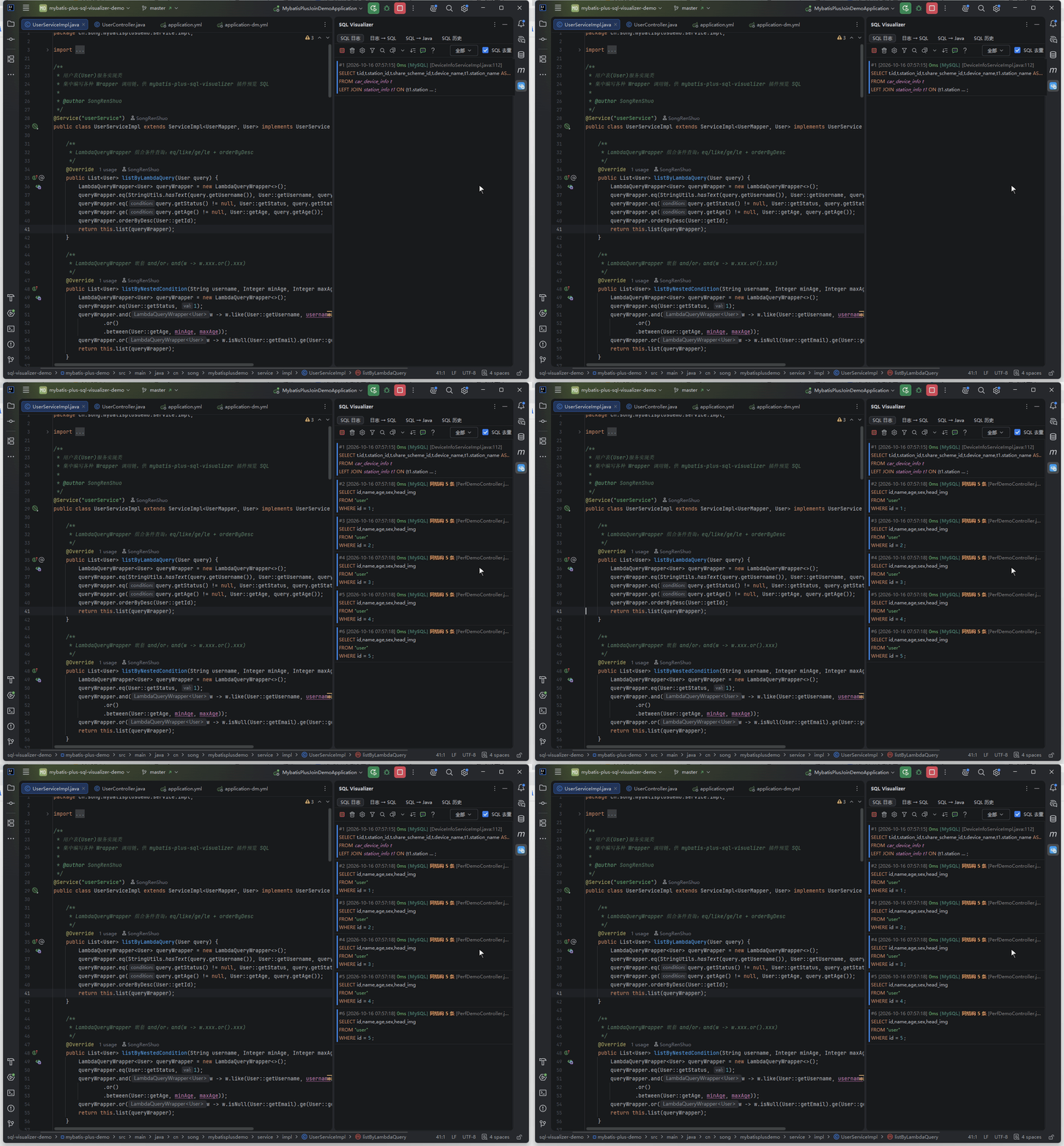
< T/2are green,T/2 ≤ duration < Tare orange, and≥ Tare red; unknown durations are gray. A slow-query counter appears when slow queries are detected - The icon group on the left of the list provides sorting by time, duration and line number, plus same-structure clustering and grouping by target database; time and duration support ascending / descending order
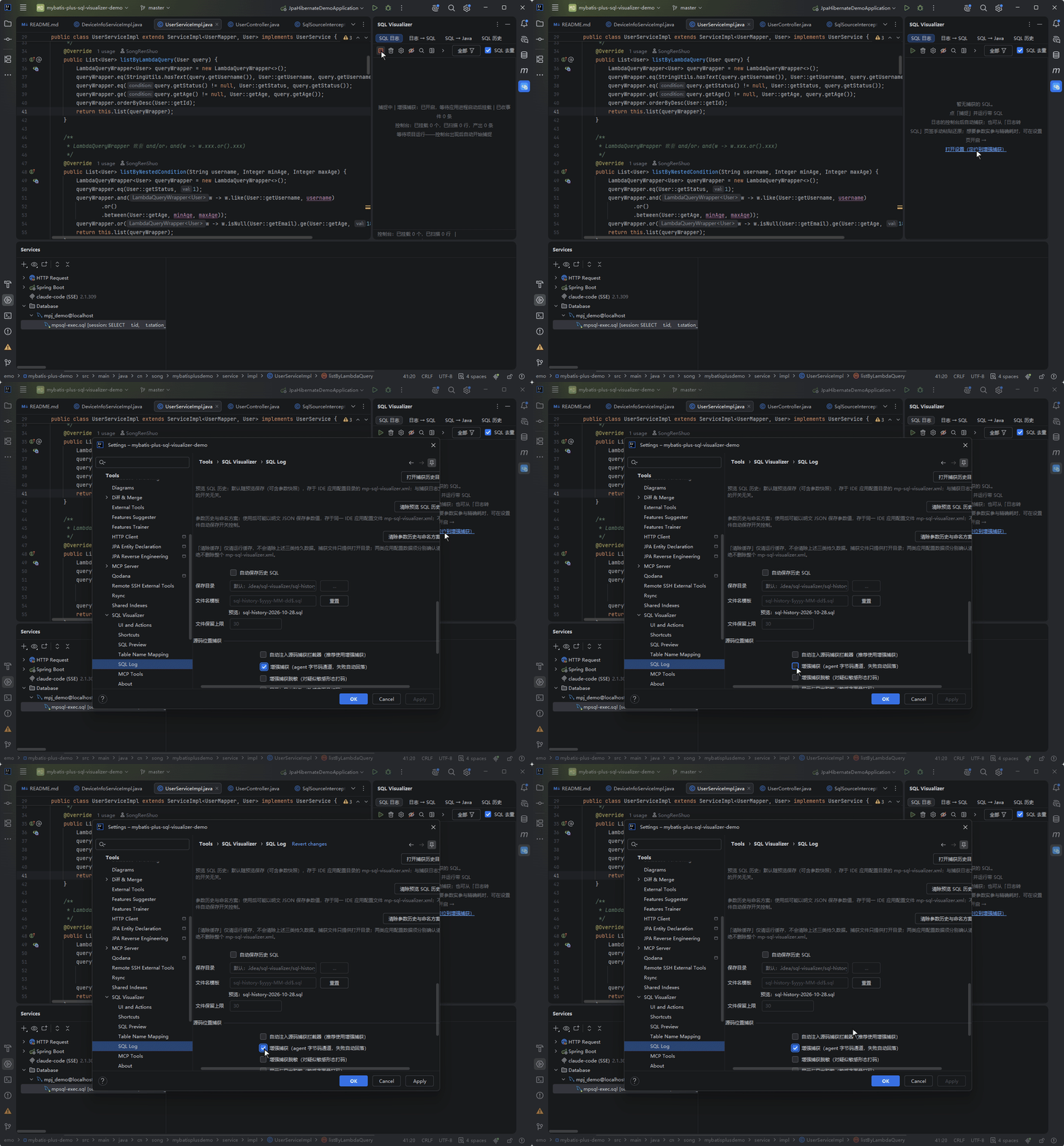
The clip below shows SQL log list colors, truncation of long SQL statements, and a clustering badge for five statements with the same structure. For pausing and resuming tail following, see "Scroll to Bottom & Tail Following" below.
Sorting and enhanced-channel details (When to read: sort results or duration data look wrong)
- Hover the sorting and grouping icons on the left for their descriptions; entries missing duration or line number always sink to the bottom (in both directions, so empty values never float to the top); time sorting follows the list's time column (with "Log time" selected, entries are ordered by log time — the time you see matches the sort key).
- The meta row is laid out in a fixed order (source last), and the source shows the full file name (brackets and the
.javasuffix kept, nothing stripped or cut); when too wide it truncates in order instead of dropping fragments. Time display strictly follows the configured format — no more silently dropping the date because the column is narrow. - For entries carrying a call stack, the meta-row stack digest is framed to the first project frame before the usual truncation — a digest that starts entirely inside framework frames no longer shows a wall of framework class names.
- Enhanced-capture entries carry structured durations (millisecond-accurate), affected-row counts and execution error messages directly — no log parsing involved.
Display Masking
Before you screenshot, record, or paste logs to a colleague, passwords and phone numbers in parameters should not travel with them. Turning on "Display and export masking (mask sensitive literals)" in the settings SQL Log group (off by default) masks sensitive values as *** at the display layer:
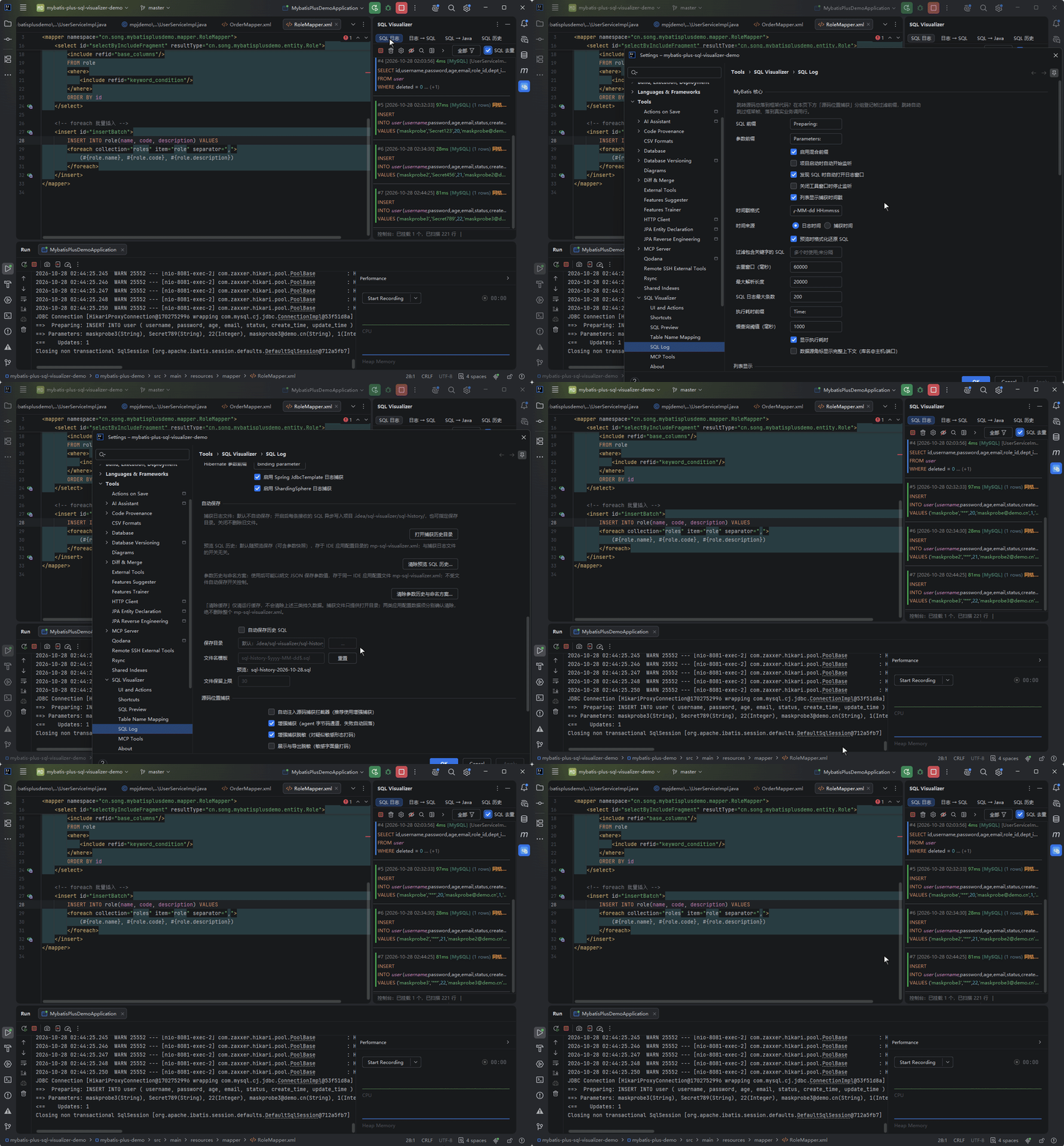
Four outgoing paths are covered:
- SQL summaries in the log list
- The click-preview overlay
- History / log export (CSV / TSV / TXT / SQL)
- MCP's
sqlv_render_logs(that one has its own separate switch, "MCP output masking" — see MCP tools)
The criterion is twofold: either the column-name hint matches (password / pwd / token / secret / idcard / mobile / phone and their Chinese equivalents), or the value shape matches (ID-card, mobile number). The rules are shared with the collection-side masking in enhanced capture.
Display layer only: entry data, parameter presets and history files keep their original values, and turning the switch off restores the display immediately. So it is a convenience for keeping sensitive values out of screenshots, not a security boundary.
Slow Queries & Performance Advice
Hunting a slow SQL has two steps: find it in the list, then understand it in the preview.
Find it in the list (details in the previous section): entries whose duration reaches the slow-query threshold (default 1000ms, configurable in settings) have their duration marked red, not the entire row, and are counted as slow queries. Use the "All" dropdown to show only slow queries, or switch to "duration descending" using the left-side icon group to bring the slowest ones to the top. Repeated statements are also clustered — once three entries share the same structure, a "N same-structure entries" badge appears on the meta line, and right-clicking it opens a focus tab showing only that structure. Different literals still count as the same structure (IN ('a') and IN ('b') group together), so an N+1 loop becomes obvious at a glance. The log page and the History page share these markers.
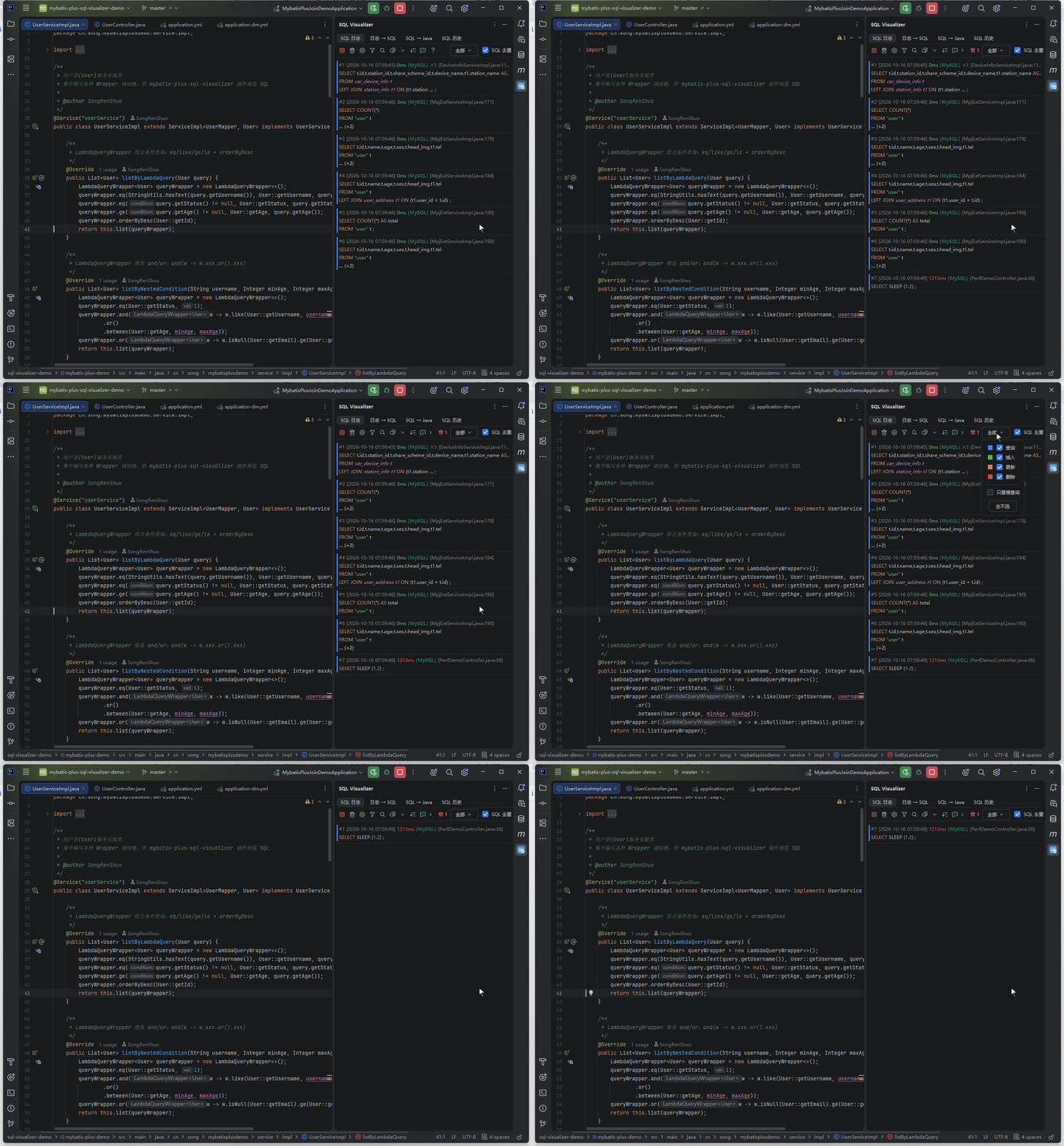
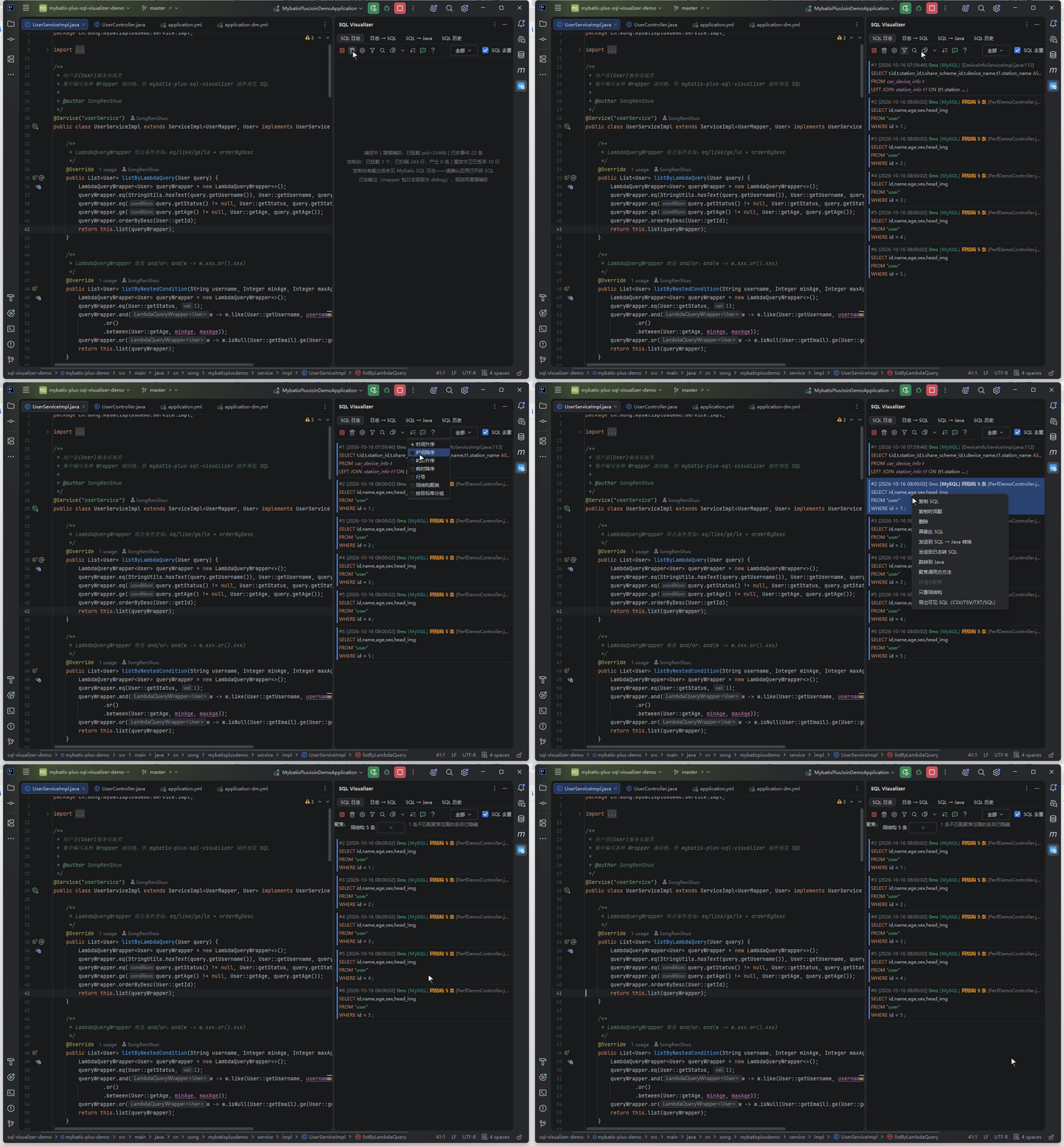
Understand it in the preview: open any preview (double-click a log entry, or use a Wrapper / XML / JPA gutter icon) and the panel's meta line is followed by static performance advice — each item starts with ⚠ (warning, red) or ℹ (suggestion, blue) and items are separated by ;; when the line runs out of room it truncates with an ellipsis and the full text appears on hover. The rules target the usual "index unusable / full scan / oversized result set" shapes, for example:
SELECT *(worse with JOIN, where redundant columns are transferred)- A query or write without a
WHEREcondition (full-scan / full-table-update risk) LIKE '%xxx'with a leading wildcard (a B-tree index cannot be used)ORDER BYwithoutLIMIT,ORDER BY RAND(), or anORDER BYcolumn missing from the SELECT listJOINwithout anONcondition (Cartesian-product risk)- A column wrapped in a function, or an implicit type conversion (both disable the index)
- Deeply nested subqueries, correlated subqueries (executed once per outer row)
- An overlong
INclause, or deep pagination with a largeOFFSET UNIONwhereUNION ALLwould do,GROUP BYwith no aggregate function
Static advice only says "this looks problematic"; to see the real cost, click "EXPLAIN" in the preview panel — the static rules and the plan the database actually returns are shown side by side. See Wrapper → SQL Preview · Real EXPLAIN Plan. With MCP connected, an agent can pull the same advice through sqlv_perf_advice (see MCP Server Tools).
Execution Errors Inline
Enhanced-capture entries bring their own execution errors (the failure cause and full error text are collected with the entry), so failures are visible at a glance with no parsing at all.
On console capture the errors have to be recognized from log text: SQL execution error lines (MyBatis ### error blocks, Spring DAO exceptions, the JDBC exception family, parameter-binding errors) are recognized and bound back to the nearest matching entry within the time window. Both channels display the same way: the list row shows an error snippet, and the entry details carry the full error text (red meta info, an error banner and a copy-full-text action).
Entry Sequence Numbers
Each list entry shows a #N number at the front of its meta line — the Nth SQL captured in this session, handy for referring to "entry N":
- Counting restarts from 1 on every project run from an application / test run configuration (launches of unrelated processes don't reset it); clearing the list manually also resets it
- SQL dropped by dedup, capture pause or keyword filter takes no number, so the list never skips
- Numbers stay readable when sorted by duration, preserving the original capture order; the History page's second-level list also shows
#Nnumbers by in-file entry order, stable under search filtering
Timestamps & Time Source
Each entry can show a timestamp, taken from the "Timestamp source" radio option under the "SQL Log" group in settings:
| Time source | Description |
|---|---|
| Log time (default) | Shows the original time parsed from the log line itself — common formats recognized automatically, such as Logback / Log4j2 / Spring Boot defaults and ISO 8601; entries whose log line carries no time fall back to capture time (enhanced-capture entries have no log line and use capture time directly) |
| Capture time | Shows the moment the plugin captured the log |
The "Show timestamp" switch controls whether the time column appears. The timestamp format setting (default yyyy-MM-dd HH:mm:ss) applies to both sources alike, and copied timestamps and the times shown on the History page all follow the same configuration.
CRUD Type Color Markers
List entries get color markers by statement type (applies to the SQL log list and the History page's second-level list): SELECT blue, INSERT green, UPDATE orange, DELETE red (defaults, all customizable); OTHER types carry no marker.
Marker style is a three-way choice, configured under the "SQL Log" group's "CRUD Color Markers" in settings — the four colors and the style are adjustable, with one-click restore to defaults:
- Left color bar (default): a 3px bar on the entry's left edge; selection uses the platform highlight and keeps the bar
- Full-row tint: the row background blends with the list color, adapting to light and dark themes; the selected row keeps its type tint plus an outline, so fast / slow duration coloring is not washed out by selection
- Off: back to the unmarked look
Each checkbox in the log page's "Type Filter" popup carries a matching color swatch legend, syncing instantly with color changes (the legend hides when marking is off).
DDL statements take part in type marking and filtering too: CREATE / ALTER / RENAME form one tier reusing the insert color (green), DROP / TRUNCATE another tier reusing the delete color (red), and both tiers can be checked separately in the "Type Filter" popup (previously DDL had no type at all, so filters like "inserts only" behaved ambiguously). Visually the bar shape tells them apart — DDL draws a dashed bar, DML a solid one, with no new settings.
Scroll to Bottom & Tail Following
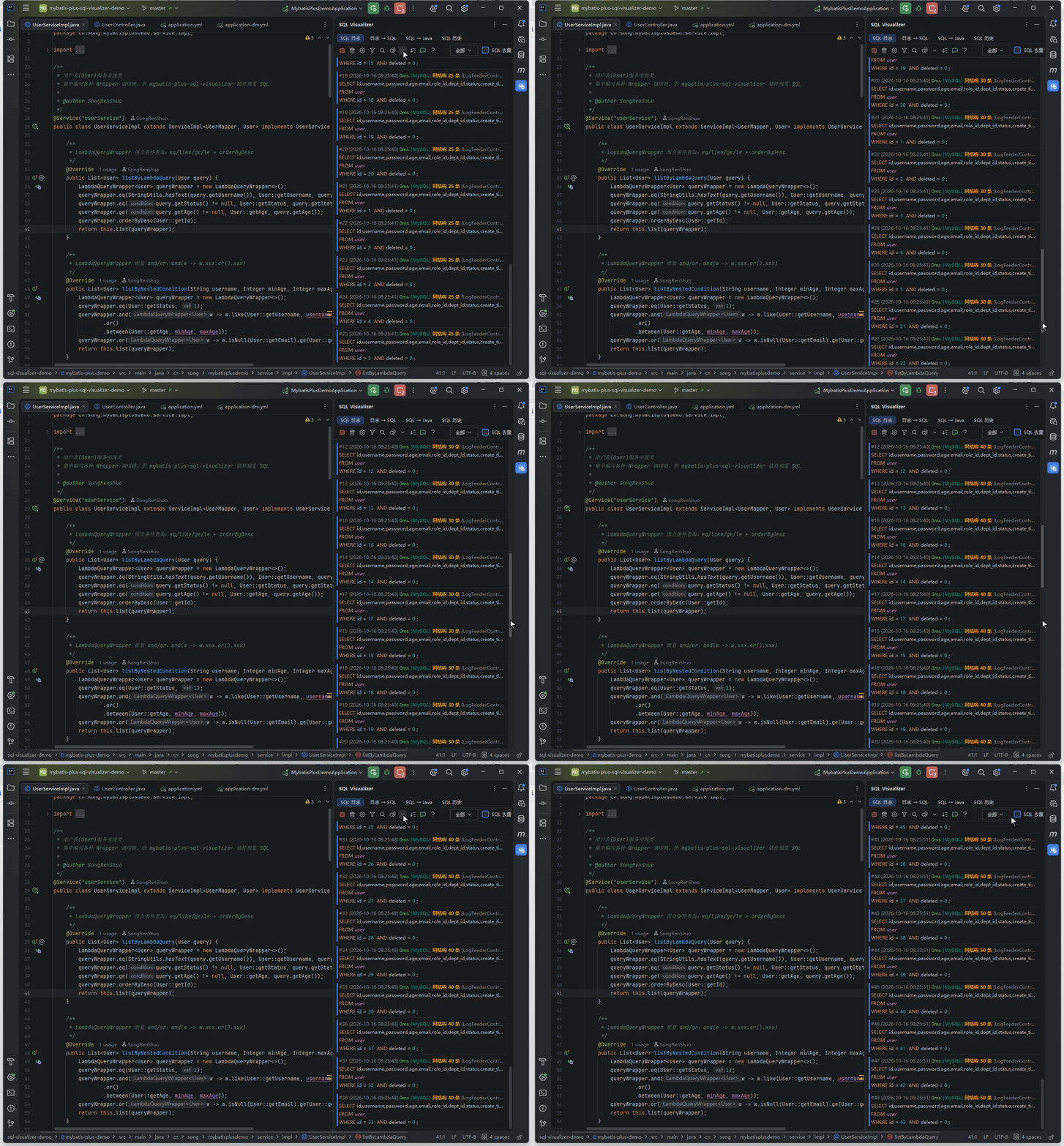
The log list has tail following on by default: the view sticks to the bottom as new SQL arrives, always showing the latest entries. Manual scrolling with the mouse wheel, scrollbar or keyboard pauses following. Scrolling back to the bottom does not resume it automatically; click the toolbar's "Scroll to Bottom" action to resume following.
Details (When to read: the list is not at the bottom, or you are looking for the action)
- The "Scroll to Bottom" action sits inside the toolbar action group (sorting, the community entry and help come after it): one click jumps to the bottom of the list and resumes following.
- Manual scrolling triggers the pause; scroll direction does not automatically resume following. Programmatic appends (new entries arriving) never disturb your reading position while following is paused.
- While following is paused the list keeps receiving new SQL: when the buffer is full and drops old rows, the viewport is compensated by the removed row's height, so what you are reading stays put.
Jump to Source
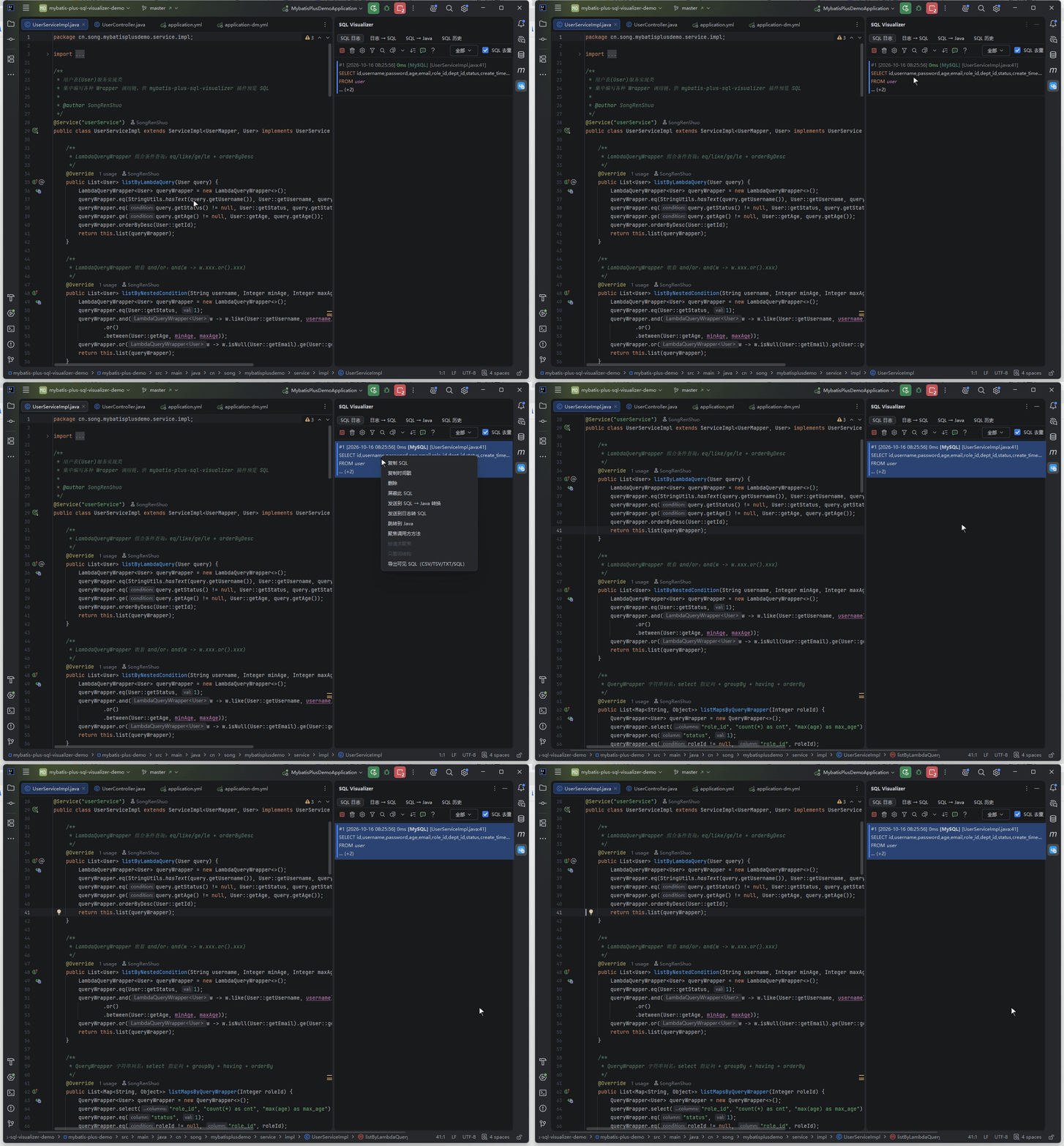
Right-click a log entry → "Jump to Source". How the position is resolved depends on the capture channel.
Enhanced-capture entries: the source location comes from the real call stack at SQL execution time, straight to the code line that ran the query. Calls entering through a self-developed framework's unified entry point are traced up the stack automatically, skipping framework frames to land on your business code.
Framework-frame filtering and business-frame registration (When to read: jumps keep landing in framework code or tool libraries)
Framework frames are filtered by origin (business classes come from directories in dev, third-party dependencies from JARs), so framework or data-layer plugin frames cannot mislead the jump. Both frame filtering and JAR business-frame ownership are configurable in settings: register your framework engine chain's packages under "Source-capture frame skip prefixes" (one per line), and your JAR-packaged business tool libraries' packages under "JAR business-frame prefixes" — registered jumps then land inside the tool class where the SQL runs, instead of the caller line above it. Both fields are validated as you type (format and cross-field conflicts) with one-click fix. The live list and history panel share the same resolver.
Jump from the Call Stack
An enhanced-capture entry carries more than a single execution point — it carries the whole call stack. Preview such an entry and hover the "Call stack:" area on the panel's meta line; after a moment a debugger-style Frames popup appears:
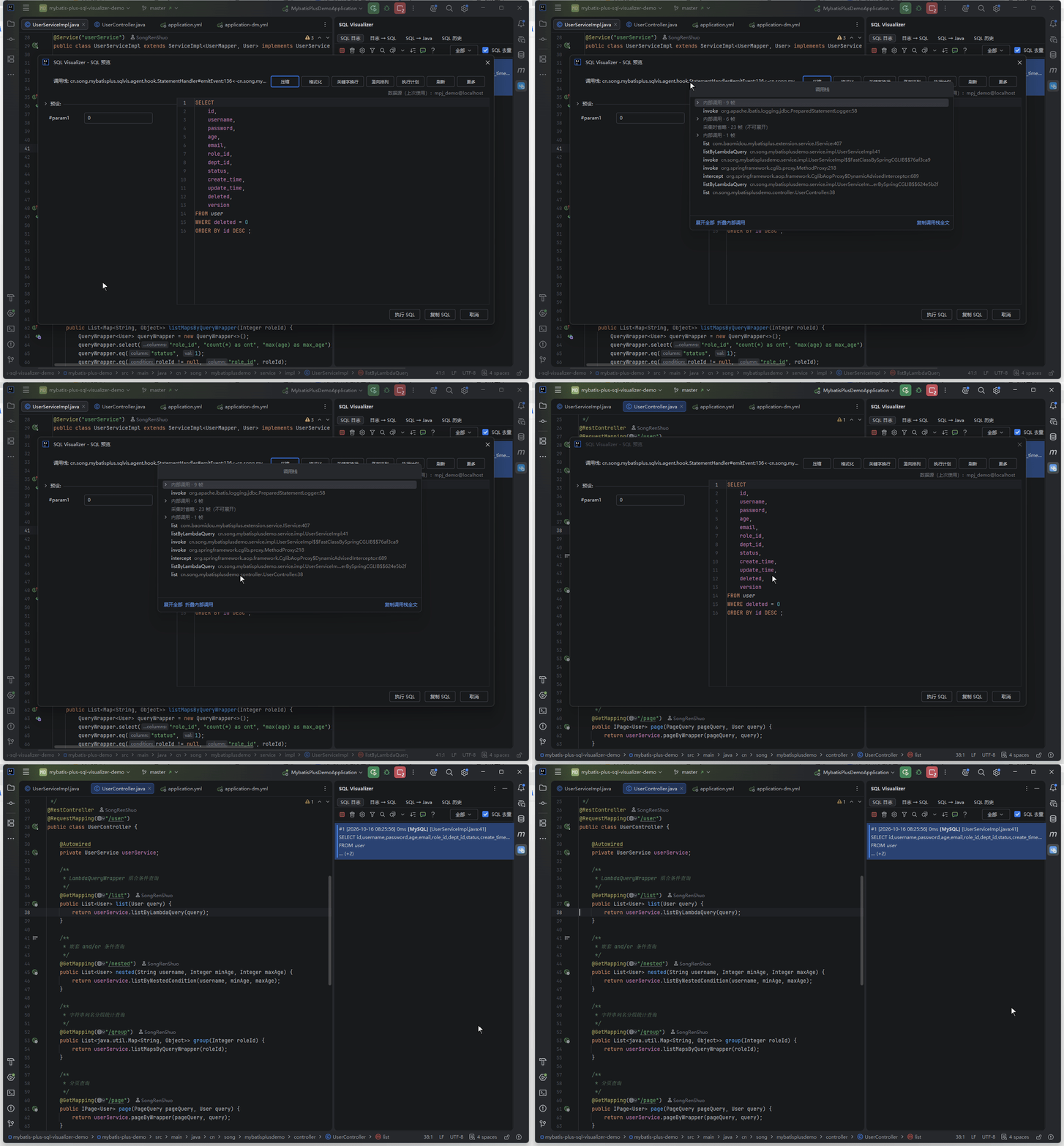
- Frames are listed as structured rows — method name, fully-qualified class name and
:line, with the class name middle-ellipsized when too wide so the line number always stays visible; the top frame is selected by default and the plugin's own capture frames are dimmed gray - Clicking any frame jumps to that frame's source line (resolved by class name across the whole project, library classes landing in the decompiled view, just like the debugger). When a frame cannot be resolved the popup stays open — no false "jumped" impression
- Infrastructure frames at the tail (Tomcat / thread-pool tails and the like) are skipped when resolving, so the popup anchors on the deepest business frame and you see the Controller → Service path at a glance; the fold list also covers the JDBC driver family and MyBatis internals
- Non-web threads producing SQL are covered too — for scheduler threads (
@Scheduledand the like) the bottom anchor pierces Spring scheduling and similar framework prefixes, so business frames are no longer squeezed out of the frame window; the popup title carries the thread name (scheduling-1,pool-2-thread-1), making it obvious which thread issued the SQL - "Copy full call stack" at the bottom copies the raw snapshot verbatim, ready to paste into an issue or a chat
How many frames are kept is configurable — "Call-stack snapshot frames" in settings (default 24, range 12–64): sampled at both ends, the top keeps JDBC / engine-side frames and the bottom always keeps 8 business-side frames, joined by an omission marker in the middle. Changes take effect via a hot push on save — no application restart.
The console channel's interceptor route (When to read: you use console capture and still need precise landing)
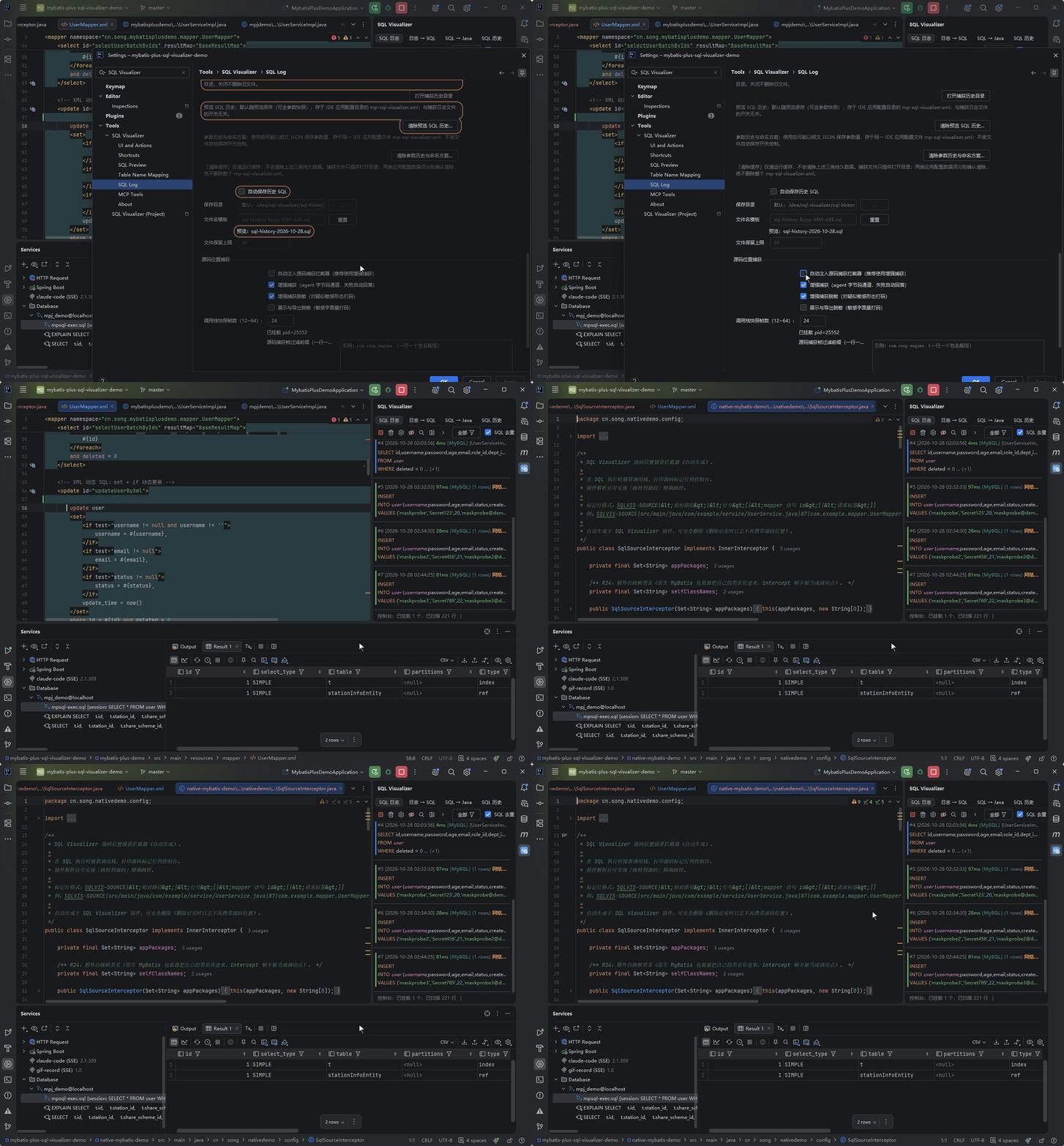
Enhanced capture needs none of this — its source location comes from the real call stack. Console logs carry no call-site info, so the plugin ships an optional runtime interceptor: copy the self-contained sample SqlSourceInterceptor (shipped with the plugin repository at docs/instrumentation/SqlSourceInterceptor.kt) into your project and register it as a MyBatis-Plus InnerInterceptor. To skip the manual copy, enable "Auto-inject source-capture interceptor" in settings — pick the modules and the interceptor is generated and registered into mybatis-config.xml for you:
@Bean
public MybatisPlusInterceptor mybatisPlusInterceptor() {
    MybatisPlusInterceptor interceptor = new MybatisPlusInterceptor();
    // Restrict to your own business packages for accurate call-site resolution
    interceptor.addInnerInterceptor(new SqlSourceInterceptor(Set.of("com.example.")));
    // Add other interceptors (pagination, etc.) as needed
    return interceptor;
}
The interceptor captures the real call site on the SQL execution thread and prints a SQLVIS-SOURCE|relative-path|line marker to the console (no impact on SQL execution, no performance overhead). The plugin parses it and jumps precisely file:line, just like the SQL History panel — straight to the Service / Controller line that fired the SQL.
Jump to Mapper XML: entries carrying mapper statement info can also right-click → "Jump to Mapper XML" — the statement id is split into namespace and fragment id, the mapper XML is located through the project index, the namespace is verified, and the jump lands on the statement node's start line.
If the XML doesn't exist (annotation SQL, MP built-in statements) or locating fails, it falls back to "Jump to Java" with no capability loss. The log page and the History page share the same entry points.
Jump fallback behavior (When to read: you hit a "cannot jump" prompt or want to configure auto-injection)
- Jumps rely only on the real captured position — no table-name guessing fallback, so a same-named table can never send you to an unrelated file. Statements like
SELECT 1have no jump target and report as such. - When a console-channel entry carries no position (no interceptor configured, or an outdated interceptor file), a guide dialog pops up with one-click "Open settings" or "Inject now" to complete the setup.
- When interceptor auto-injection meets an unrecognized project type (not a Spring Boot + MyBatis-Plus project), the dialog instead guides you to enable enhanced capture in one click (the enhanced channel does not depend on project type), rather than leaving you to dig through the manual configuration sample (the
SqlSourceInterceptorsample file remains in the plugin repository — the manual route is still there). - When "Auto-inject source capture interceptor" in settings triggers on a multi-module project, a dialog first asks you to pick the modules to inject (all selected by default).
Dedup & Filter
| Feature | Description |
|---|---|
| Dedup window | Same SQL doesn't reappear within window (default 60000ms, adjustable; dedup ignores leading / trailing and repeated whitespace differences — different parameters still count as different statements) |
| Instant dedup | Enabling "SQL Deduplication" immediately trims existing duplicates in the window and shows a ⨉N badge with the dropped count |
| Keyword filter | Remove log lines containing specified keywords |
| List search | The search box matches SQL content, source file, #number (#5 or 5 hits exactly entry 5) and time text (search what you see, matched against the displayed format); available on both the log page and the History page |
| Copy timestamps | Select entries (multi-select works), right-click → "Copy timestamp" to copy plain time text line by line (no display brackets; the menu item shows the count for multi-select); grayed out while timestamp display is off |
SQL Suppression
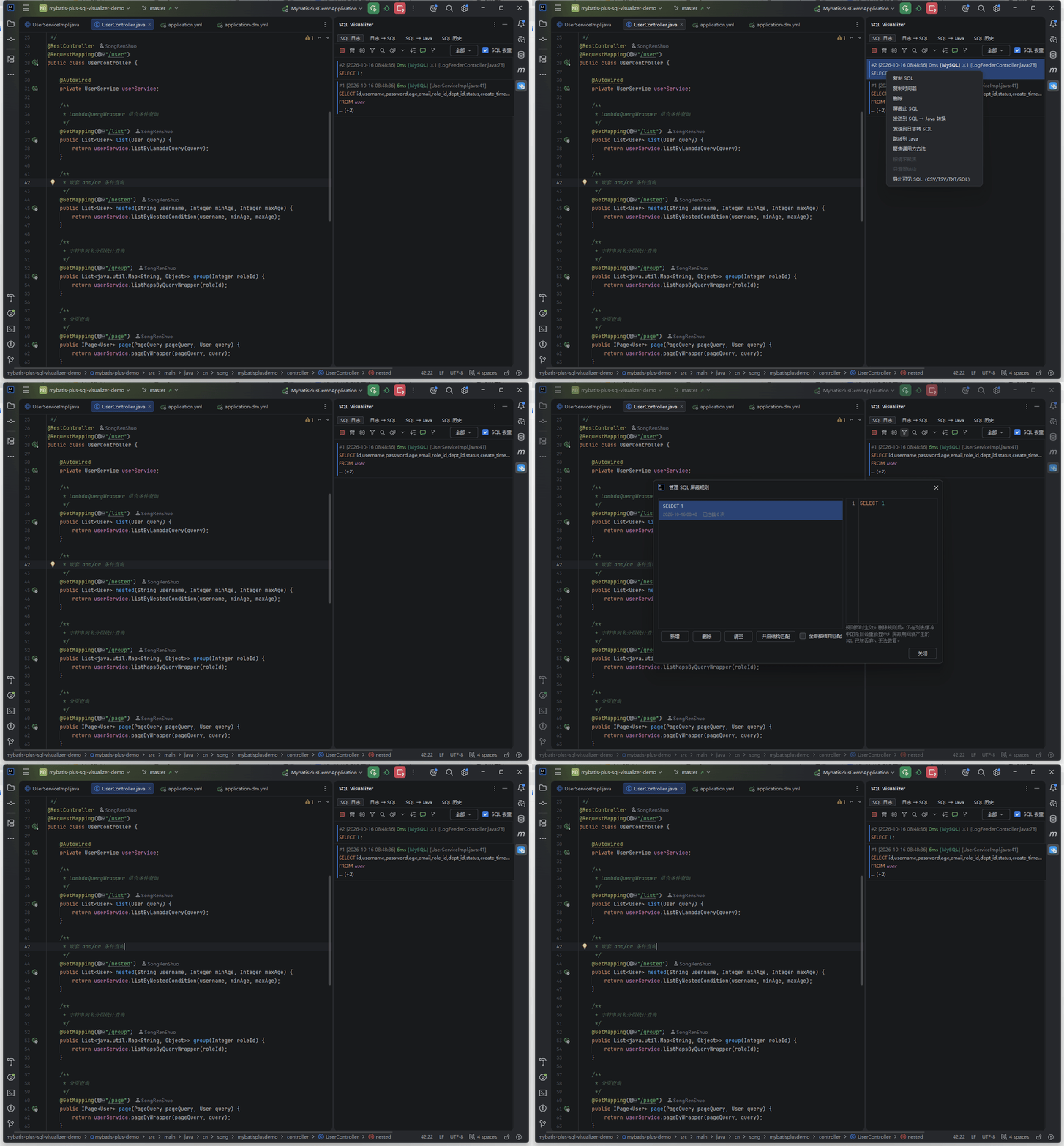
When keep-alive heartbeat SQL (such as SELECT 1) keeps flooding the list, you can suppress it out of the list:
- Right-click an entry → "Suppress this SQL" to suppress in one click; multi-select works (different statements become separate rules, existing ones are skipped automatically). Existing rows vanish from the list immediately, a balloon notification can jump straight to the management dialog, and the management dialog shows live hit counts
- The toolbar "Manage suppression rules" (eye-with-slash icon; the funnel icon is the SQL type filter) and the right-click "Manage suppression rules…" open the same management dialog: a rule list (pattern summary / created at / blocked N times counter) plus a read-only SQL preview with syntax highlighting and line numbers on the right; add / delete / clear take effect instantly, and the dialog is resizable with its size remembered
- Rules apply globally at application level and are stored independently (not part of settings import/export), capped at 500 rules; entries still in the buffer reappear when a rule is deleted (entries already dropped from the queue cannot be restored)
Matching semantics (When to read: a rule was added but doesn't hit)
Matching = exact match after whitespace normalization of the restored SQL (trailing semicolons are stripped automatically, so a rule pasted with ; still matches) — SELECT 1 and select 1 hit the same rule. An optional structural match (off by default, enabled per rule or all at once with one click) matches by statement shape instead — the same shape with different parameter values is suppressed together.
Focus Tabs
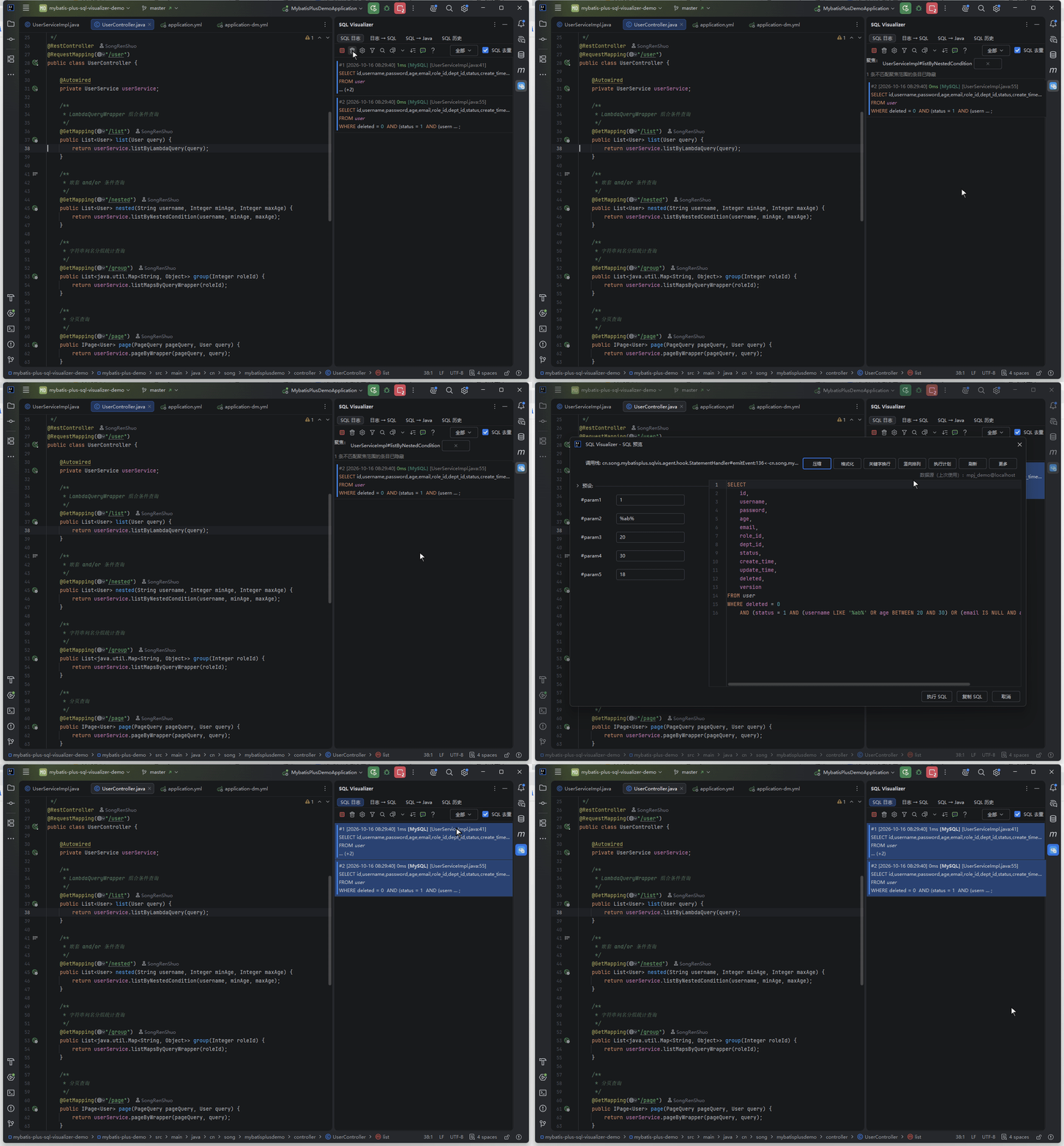
The entry context menu offers two focus modes, shown as tabs at the top of the panel — several can be open at once, each can be closed, and they stack correctly with type filter and search. The tab strip always stays on a single row: when many are open the platform compresses them and collects the overflow into a "show all tabs" dropdown:
- Focus caller method: statically approximates the source position's line range so the list shows only SQL issued from within that method
- Focus by request: right-click a SQL executed inside a web request → "Focus by request" to see only that request's SQL, kept in a flat timeline
Focus boundaries (When to read: focus results differ from what you expect)
- Focus caller method: nested classes, overloads and lambdas resolve to the smallest containing method; entries outside the range are hidden with a count hint. Known boundary: Kotlin callers are not supported in the first batch.
- Focus by request: request tabs are deduplicated and capped at 8 (the oldest tab is evicted past the cap), so long load-test sessions can't flood the list; entries without a request tag (scheduled jobs, startup phase) are hidden under focus with a count.
Three Display Modes
The "List display" dropdown under the "SQL Log" group in settings controls how SQL renders inside entries, switching instantly:
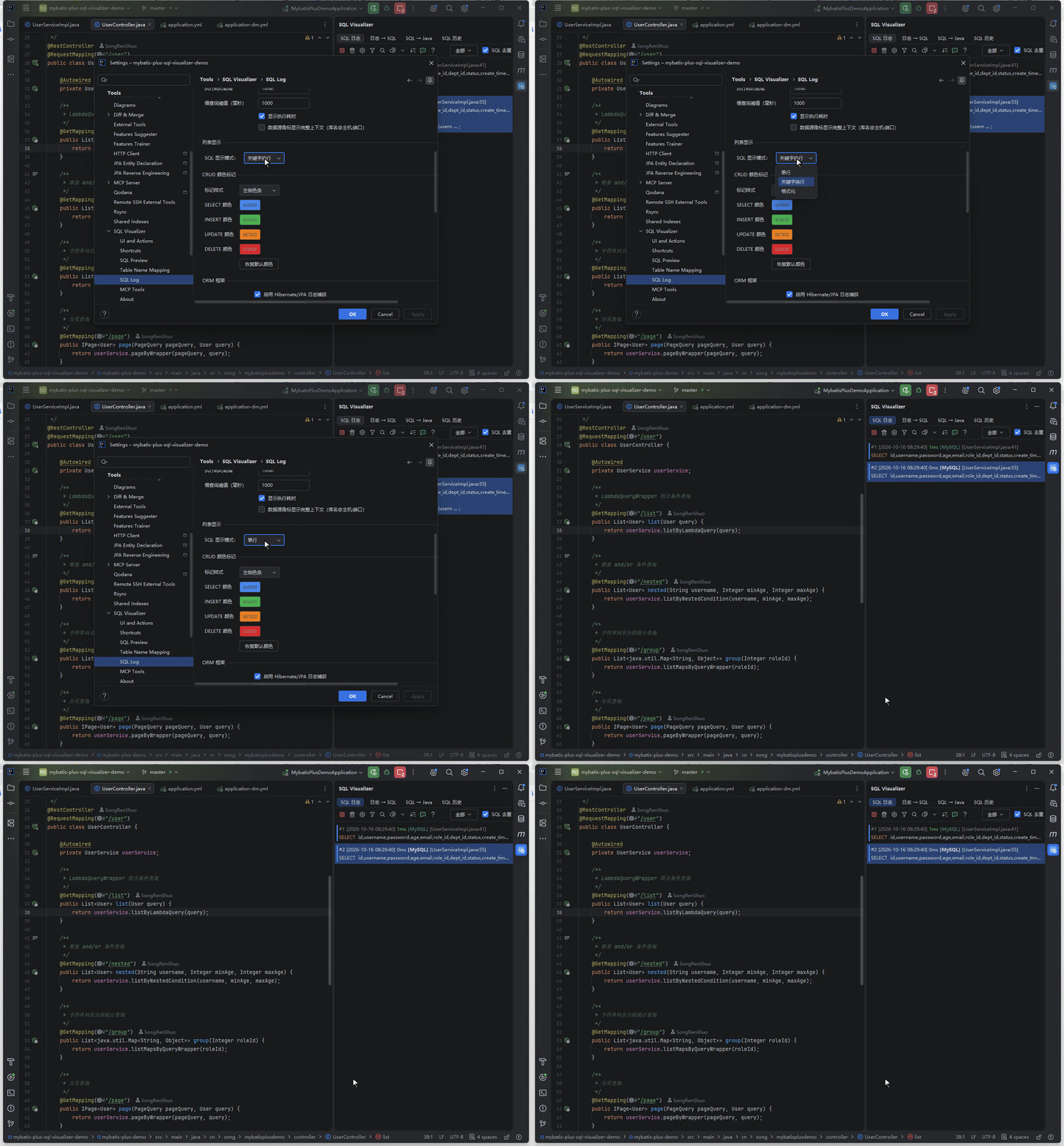
- Single line: one fixed row per entry, long SQL truncated
- Keyword wrap (default): SQL wraps at keywords, height growing with content; wrapping works on the fully restored SQL (extra-long statements truncate at a whitespace boundary within budget) — no more single-line display because the summary was too short to find a wrap point
- Formatted: full pretty-print, long statements split clause by clause
The SQL log page and the History page share the same setting, which survives IDE restarts. In any mode, Ctrl+C on a selected entry copies the plain SQL, not the rendered text.
Entry Selection, Quick Preview & Double-Click Dialog
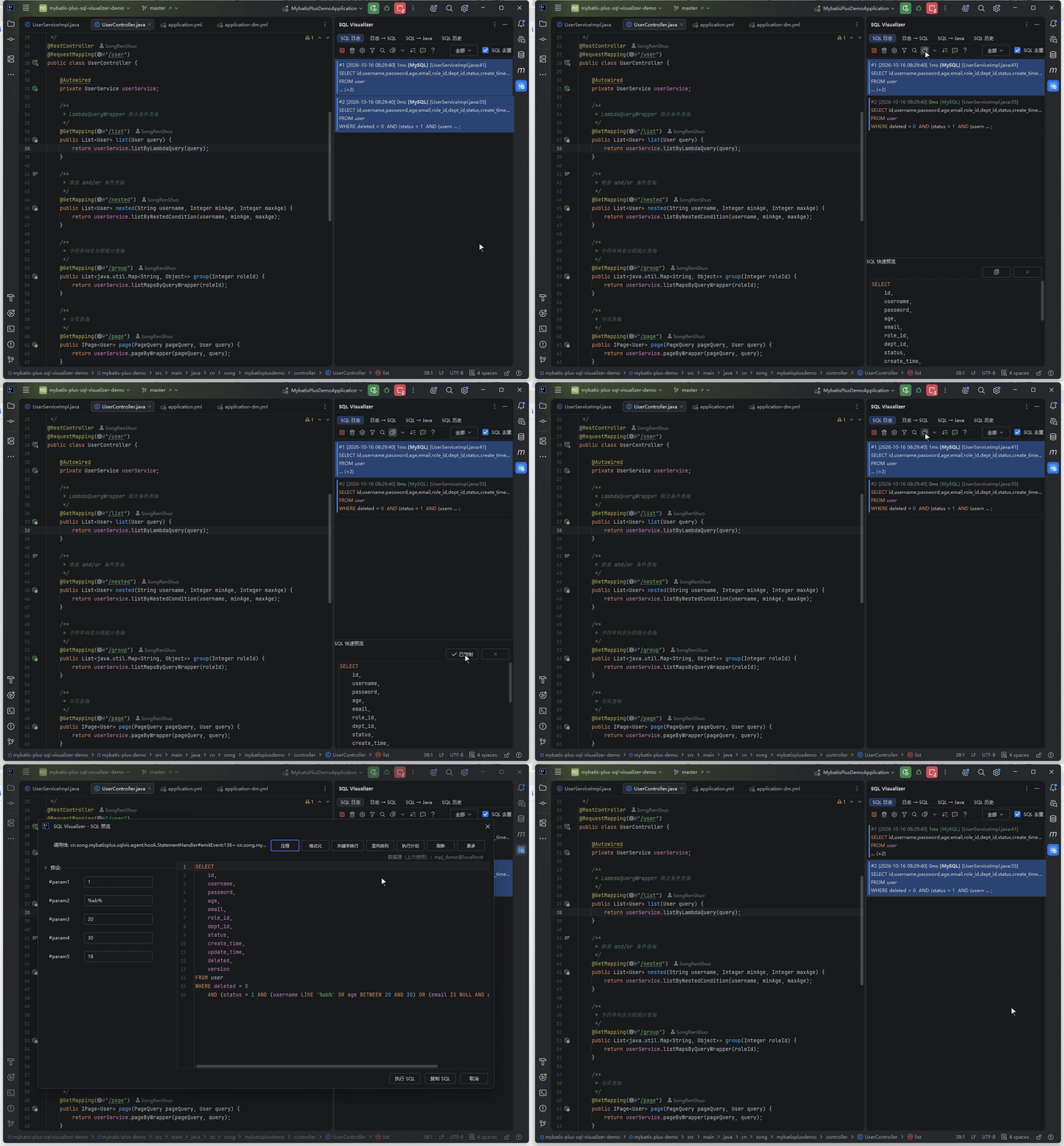
Entry actions are consistent across the SQL log list, the History tab's second-level list and the history tool window:
- Single-click an entry: only selects it by default, without opening a preview popup. The selected entry's SQL appears in the bottom preview area only after you explicitly enable "Quick Preview" in the toolbar
- Copy SQL: select an entry and press Ctrl+C or right-click → "Copy" to get the full SQL, unaffected by truncation in the list summary
- Multi-select batch copy: after Ctrl / Shift multi-select, right-click → "Copy" copies all selected SQL at once (the menu item shows the count, e.g. "Copy selected SQL (3)", each statement semicolon-terminated and newline-joined)
- Double-click an entry: opens the full preview dialog (same as Wrapper preview, supports parameter fill-in and formatting). The toolbar offers layout toggles — horizontal / vertical / keyword wrap — plus a "More" menu gathering low-frequency actions (import parameters, diff, share)
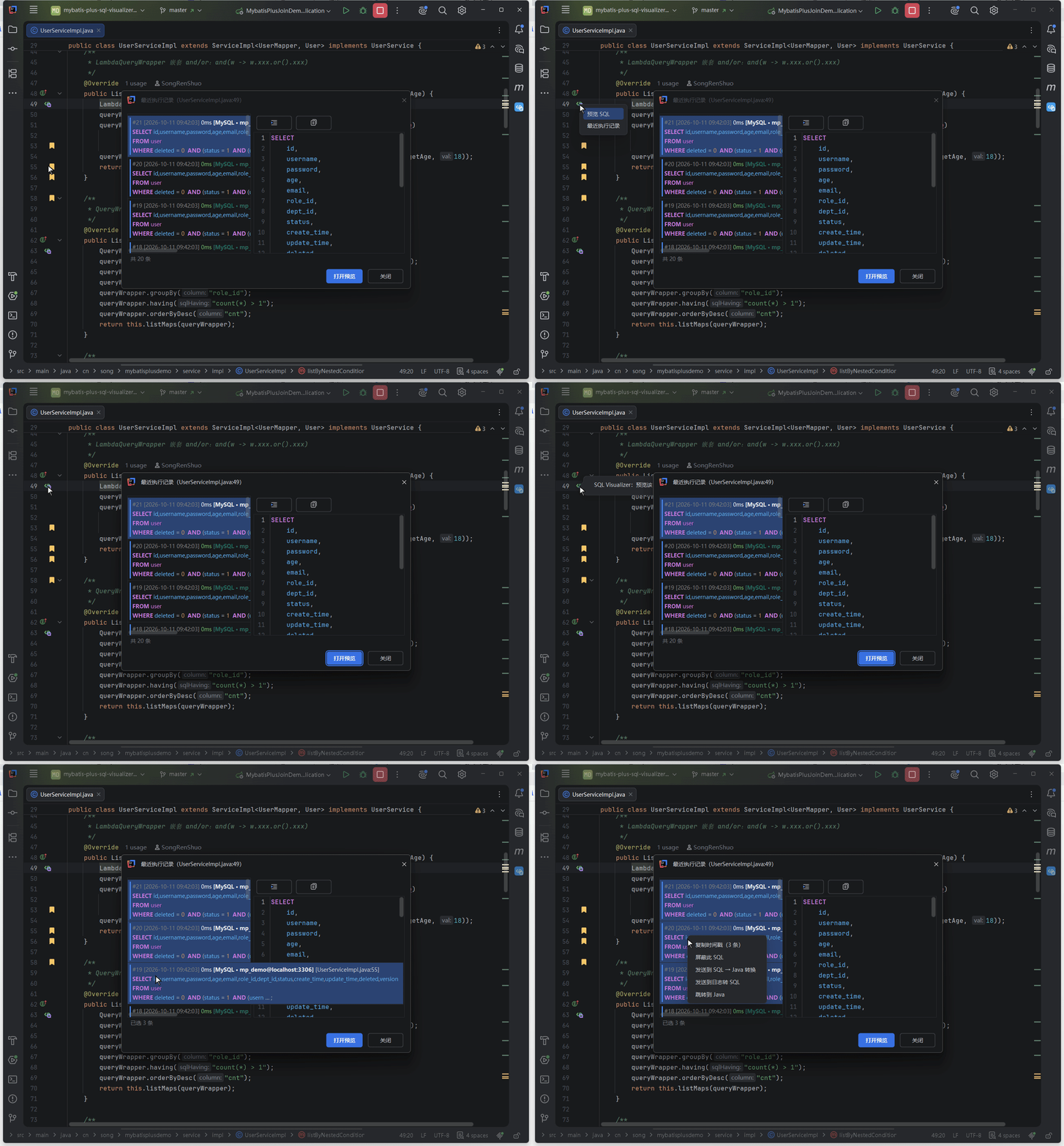
Preview behavior details (When to read: preview rendering or dialog behavior differs from what you expect)
- Quick preview: the toolbar toggle controls the bottom SQL preview area and is off by default. Double-click an entry for the full preview and parameter fill-in. The full preview follows the "Format SQL on preview" setting (on by default), keeping the original text when off; literal SQL with zero placeholders (values inlined in the SQL text) and IN lists are recognized into editable parameter rows as well.
- Multi-select and right-click: right-clicking a row already in the selection keeps the selection, while the other menu actions still apply to the right-clicked row.
- Double-click dialog: vertical layout annotates each INSERT value line end with a
-- columntag (can be disabled in settings), and IN lists expand vertically element by element — any list with a comma (≥2 elements) puts(on its own line with one element per line, while single-element forms (IN (1)/IN (?)) stay on one line, and IN subqueries and LIMIT pagination parameters are never expanded. The display mode you switch to survives parameter refill instead of being wiped by re-rendering (Refresh resets it). The dialog is non-modal: when a data source password expires during execution, IDEA's password prompt can be raised on top as usual; with no data source configured, preview prepares silently — it no longer raises the Database tool window over the sidebar, and only an explicit run guides you through configuration. - Auto-fold: with "Auto-fold long field lists" enabled in settings (off by default, threshold adjustable, default 10), preview editors collapse long SELECT / INSERT column lists, VALUES groups and UPDATE SET lists into a "… N columns" placeholder — click the fold marker to expand. This applies consistently across the main preview dialog, bottom quick preview, history preview, the Log → SQL result area and the native Database console.
- Identical Ctrl+C semantics everywhere: in every surface with a SQL editor (main preview panel, bottom quick preview area, "Recent Executions", suppression rules, rollback SQL, the SQL → Java input area, parameter import) Ctrl+C means the same thing — with no selection it copies the whole SQL, with a selection it copies just the fragment (Ctrl+C and Ctrl+Insert are synonyms); Ctrl+C on a list copies the plain SQL rather than the rendered text.
How entries render is controlled by the "List display" option in settings (see the section above).
SQL History
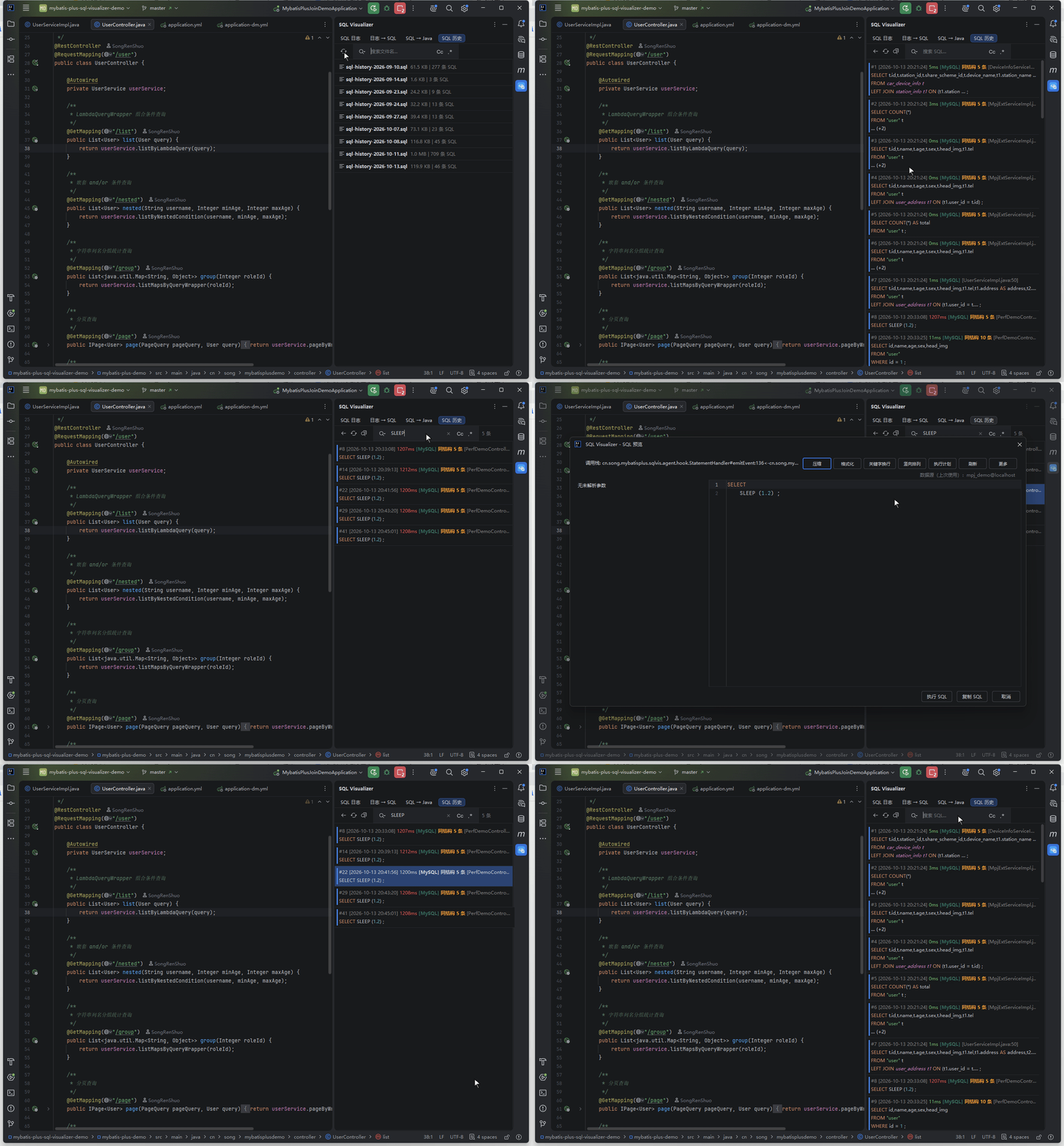
The "SQL History" tab is always present on the panel — you don't have to enable auto-save first to see the entry point (it shows an empty state when auto-save is off and the directory holds no history files). Previously the tab was only mounted once certain conditions were met.
Enable "Auto-save SQL history" in settings (off by default) and captured entries are saved to disk in full (not limited by the list's max-entry count); when the save directory holds more history files than the retention limit (default 30, configurable, 0 = keep everything), the oldest files are cleaned up automatically to keep the disk in check. Reading and writing go through the same directory resolution: files written after you customize the save directory are visible on the History page too, and changing the save directory triggers a rescan.
- Level 1 (default view): file list — each row shows file name, size and SQL count; search box filters by file name
- Level 2 (file content): double-click a file to list its SQL entries one by one (with the same highlighting, duration, timestamp and source info, and a
#Nnumber per in-file entry order); large files load in batches as you scroll — the first 30 entries up front, more appended as you near the bottom; single-click only selects an entry by default, explicitly enabling "Quick Preview" in the toolbar shows its SQL at the bottom, and double-click opens the full dialog, right-click to copy SQL, copy timestamps or jump to source; the search box matches SQL content / source file /#number/ time text - Back: "← Back" returns to the file list; switching tabs refreshes automatically, without interrupting browsing while the file you're viewing still exists
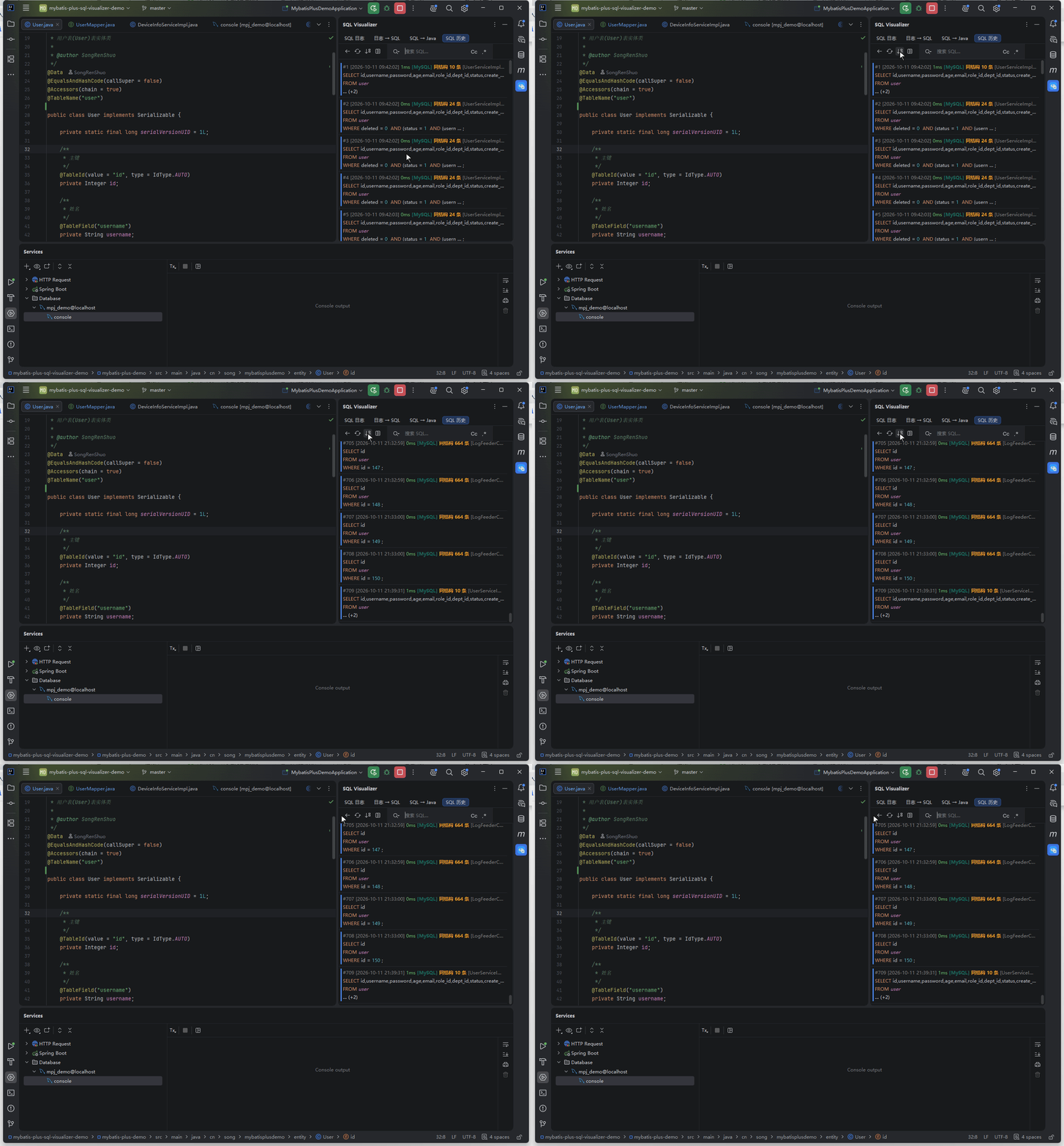
- Jump to last entry: the "↓≡" action in the second-level toolbar jumps straight to the last entry of the current filtered result — no more scrolling to the bottom of a file with thousands of rows. It loads the remaining entries in one go and then positions the view, rather than scrolling batch by batch
- Search toggles: the two switches to the right of the search box mirror IDE find semantics —
.*enables regex matching (equivalent to theregex:prefix) andAaenables case sensitivity (off by default = ignore case); level-1 file-name filtering followsAatoo, while regex does not apply to file names - Parameter recognition & refill: history entries share the same recognition channel as the live log — double-clicking opens the dialog with parameter fill-in just the same
- Export & compare: right-click the second-level list for "Export SQL" (CSV/TSV/TXT/SQL, SQL by default with a timestamped file name) and "Compare two selected" (line-by-line diff; the title carries the structural-fingerprint verdict — "structurally equivalent, parameters only" when the two match, otherwise the differing line count) —
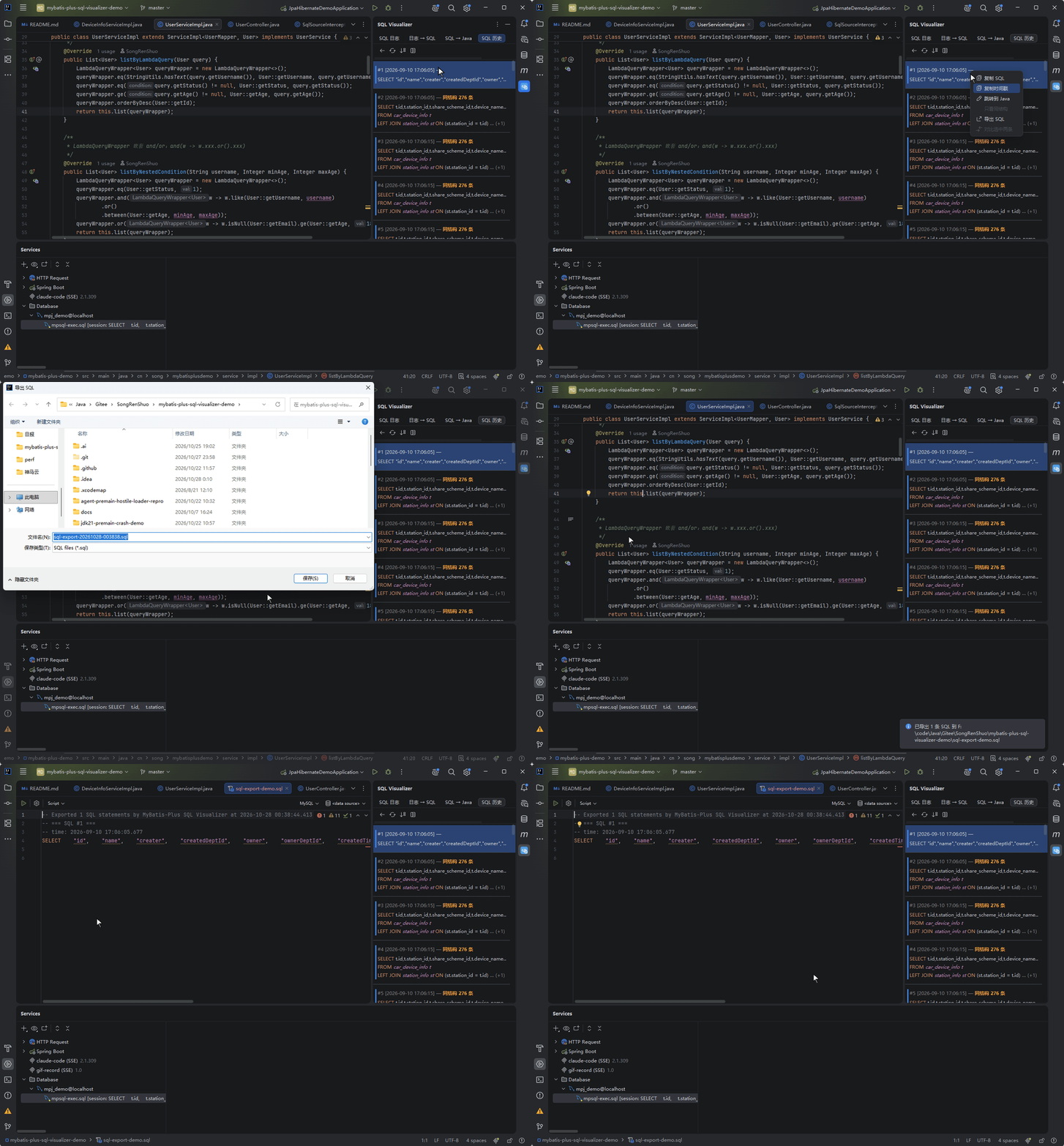
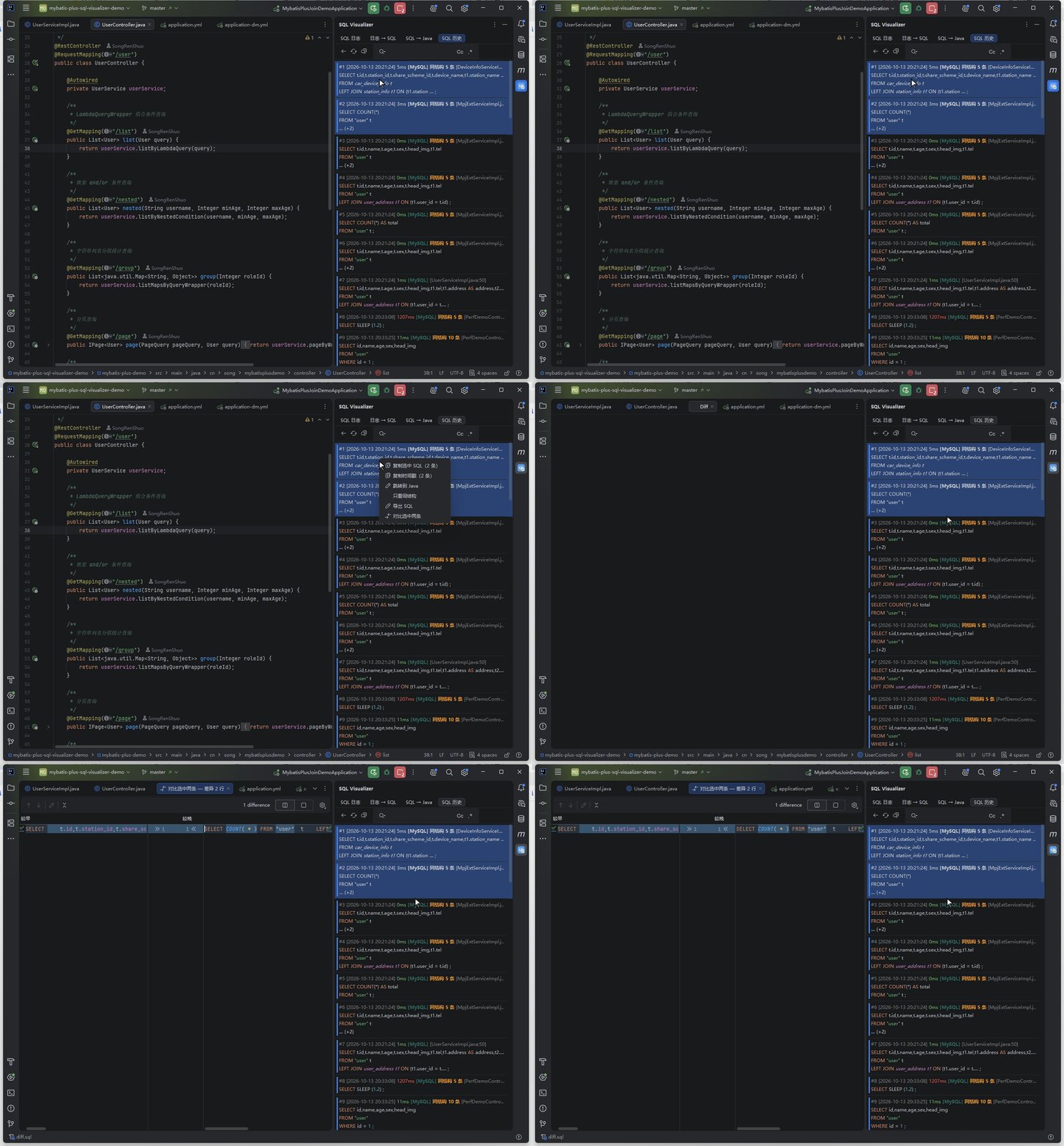
History storage and version compatibility (When to read: you use a custom save location or mix old and new plugin versions)
- History files are saved under
.idea/sql-visualizer/sql-history/in your project by default (the directory was renamed frommybatis-plus-sql-visualizerin v2026.9.2 — old directories are no longer read). Save location and file name pattern are configurable in settings. - History files (v2 format) store parameters per entry (inlined as a
-- pd:comment line next to the statement), along with the original time and database info — older plugin versions ignore the extra fields and open the file as usual, while the new version reads all older files normally. - The second-level list's timestamp format and source follow the current settings configuration.
Join the Community
The chat-bubble icon towards the right of the toolbar opens a native dialog (only help "?" sits to its right) showing the author's WeChat contact and community-group note side by side — if you want to ask something directly instead of digging through the docs.
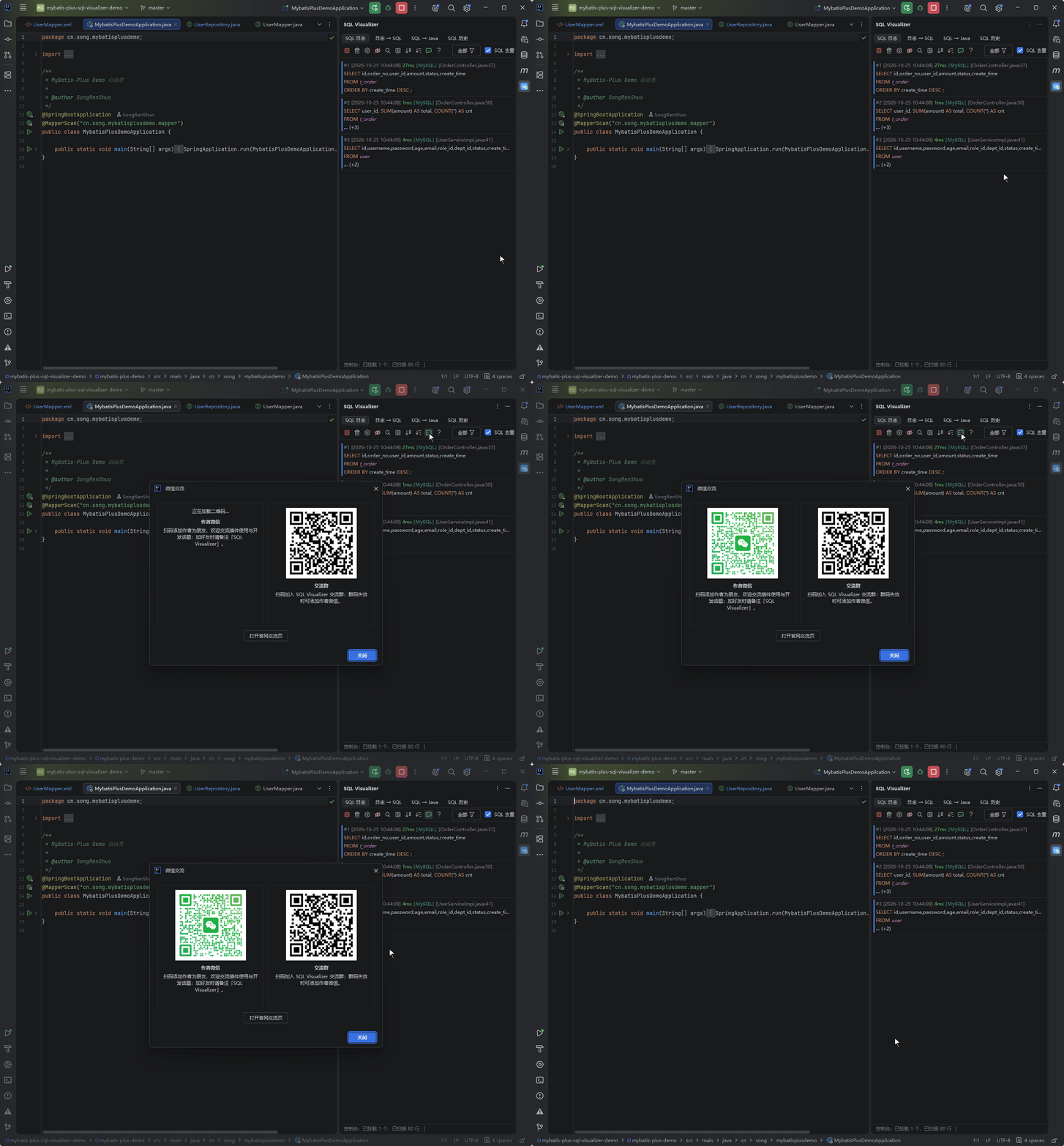
QR codes are fetched asynchronously from the website when the dialog opens; if loading fails the dialog offers an "open the community page" fallback instead of leaving a blank area.
Have a suggestion or hit an issue with this feature? Go to the feedback pool